Introducing Slide Notes: Now You Know Exactly What to Say
We just added slide notes to Visual Prompts, so you always know exactly how to introduce the characters in your slides.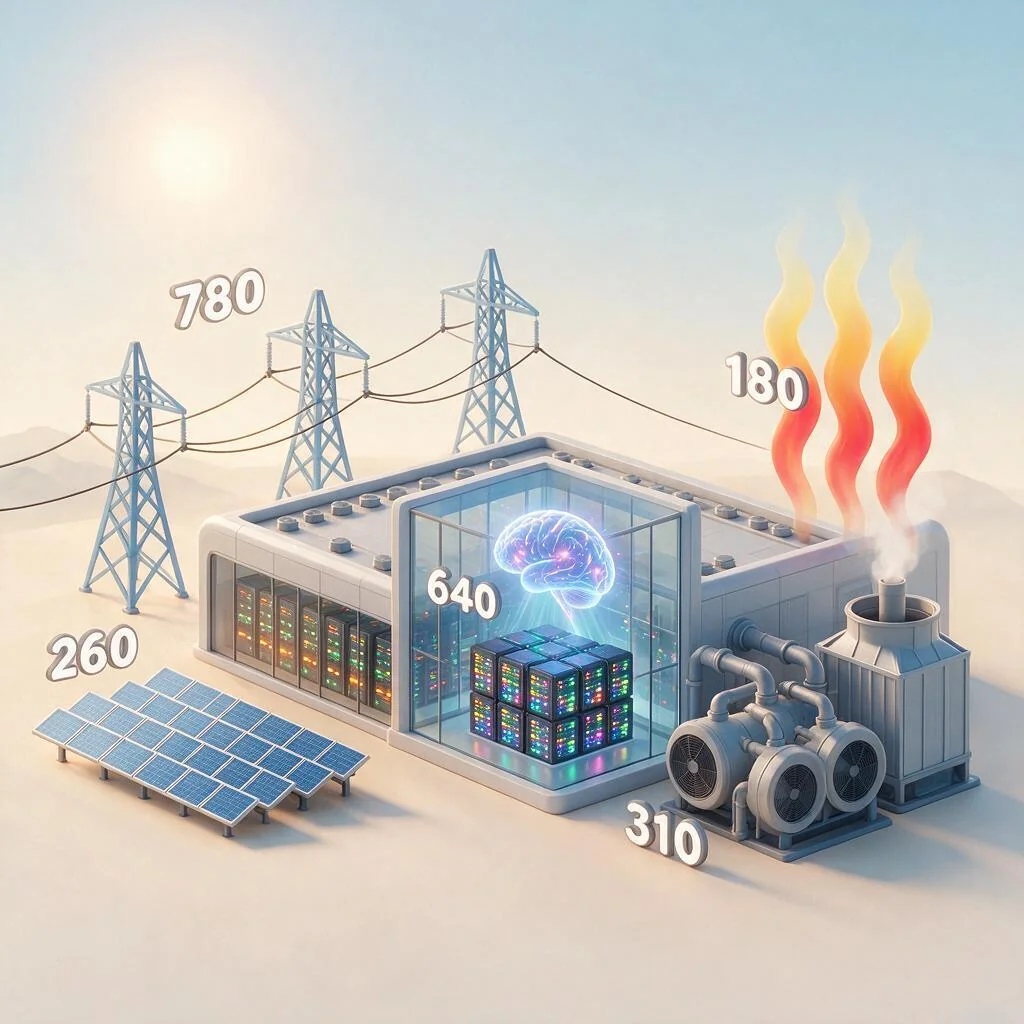
Some context, if this is the first time you're seeing this
We built a tool that turns any dataset into a full slide deck of AI-generated images. One click, and every recurring entity in your data, say a "Data Center" or an "Electricity" source, gets locked to the exact same visual description across every slide it appears in. So it's always the same character showing up, not a different building every time you ask an AI to draw it.
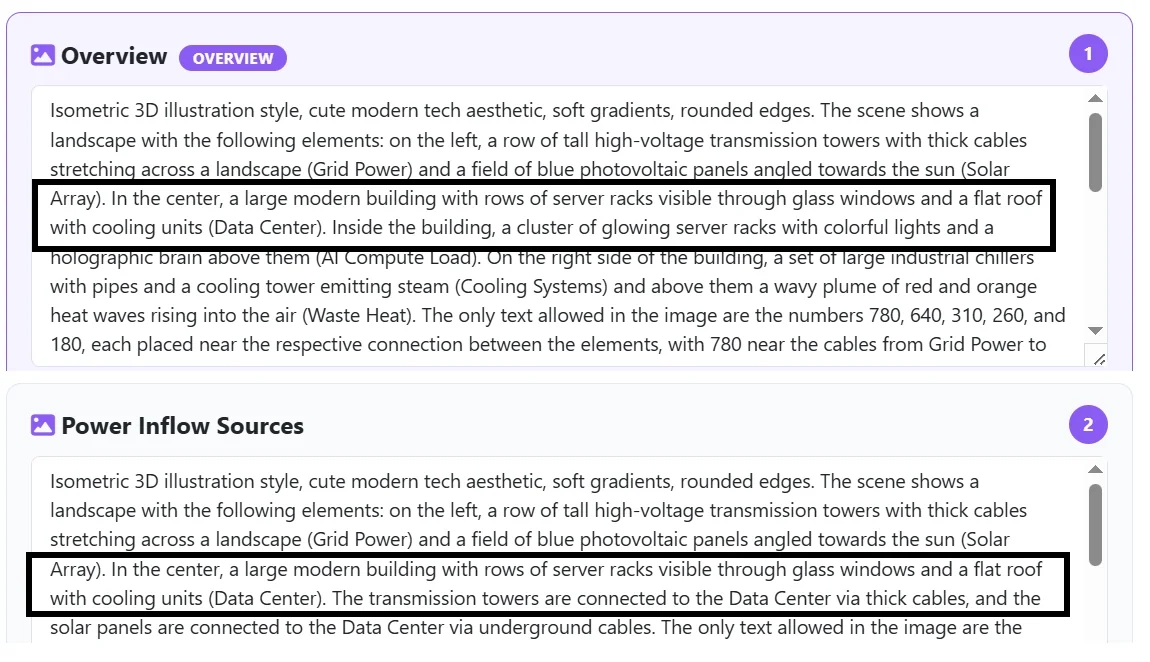
That solved the visual problem. But there was still a second, quieter one.
The problem consistency alone didn't fix
Even with a perfectly consistent deck, you still have to know what to say about each slide when you're actually presenting it. Nobody wants to be the presenter pausing mid-sentence, trying to work out how to explain that this slide is secretly the same thing as slide two.
Consistent visuals get you a deck that looks coherent. They don't hand you the words.
What slide notes actually do
Every generated slide now comes with a few sentences already written for you: plain language, your data's real names and numbers, ready to read or paraphrase the moment that slide comes up. Not the image prompt's visual description, not AI jargon, just what a presenter would actually say out loud.
The picture and the script, generated together, from the same click.
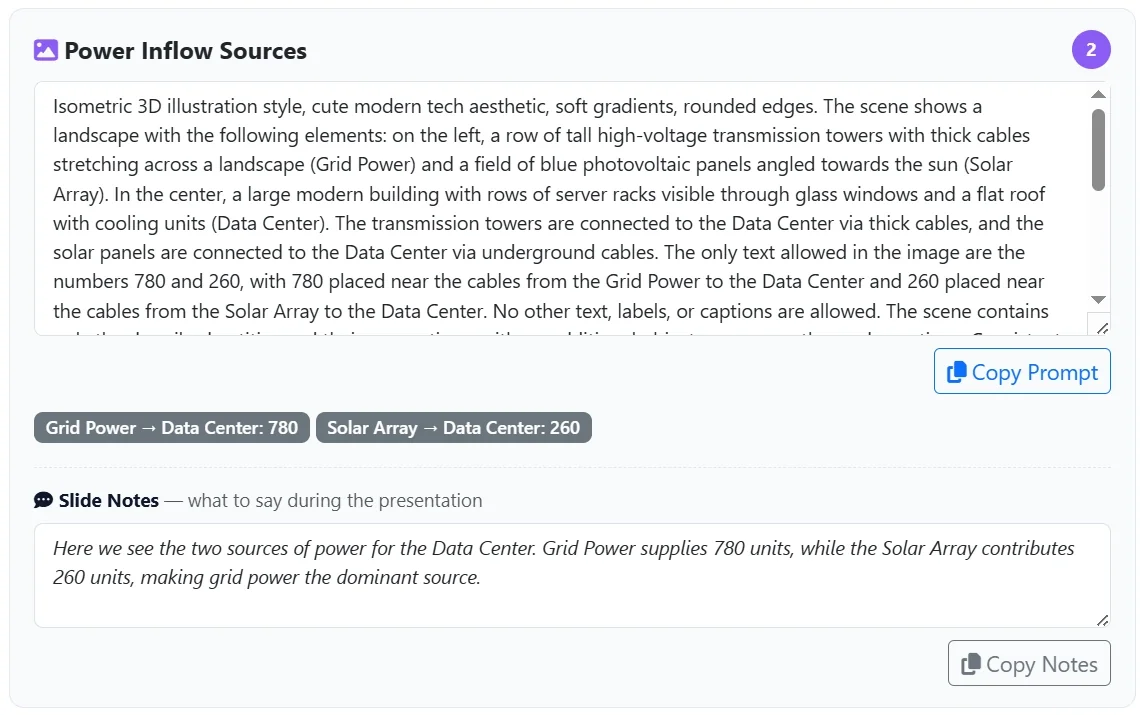
This is the part that actually makes a deck presentable, not just good-looking. You can hand these notes to someone who's never seen the underlying data and they'd still know what to say.
A real example
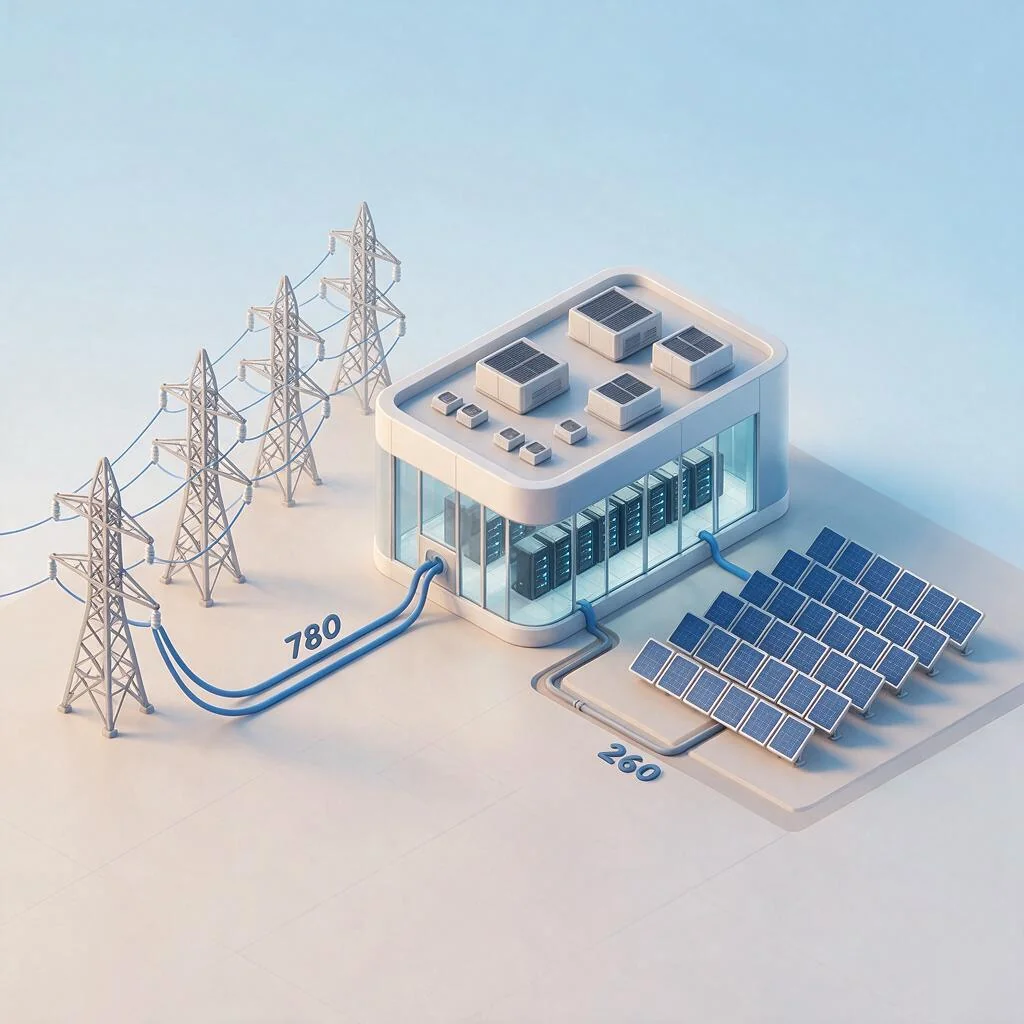
Here's an actual generated prompt, its slide notes, and the isometric slide it produced:
Prompt: Isometric 3D illustration style, cute modern tech aesthetic, soft gradients, rounded edges. The scene shows a landscape with the following elements: on the left, a row of tall high-voltage transmission towers with thick cables stretching across a landscape (Grid Power) and a field of blue photovoltaic panels angled towards the sun (Solar Array). In the center, a large modern building with rows of server racks visible through glass windows and a flat roof with cooling units (Data Center). The transmission towers are connected to the Data Center via thick cables, and the solar panels are connected to the Data Center via underground cables. The only text allowed in the image are the numbers 780 and 260, with 780 placed near the cables from the Grid Power to the Data Center and 260 placed near the cables from the Solar Array to the Data Center. No other text, labels, or captions are allowed. The scene contains only the described entities and their connections, with no additional objects, arrows, paths, or decorations. Consistent visual reference for entities repeated across slides — always depict exactly as follows: Grid Power always appears as: a row of tall high-voltage transmission towers with thick cables stretching across a landscape; Data Center always appears as: a large modern building with rows of server racks visible through glass windows and a flat roof with cooling units; Solar Array always appears as: a field of blue photovoltaic panels angled towards the sun. Do not include any other text, labels, captions, titles, watermarks, or writing anywhere in the image, in any language or script — the only text allowed is the exact numeric value(s) specified above. This scene contains ONLY these entities and their described connections: Grid Power, Data Center, Solar Array. Do not add any additional objects, arrows, paths, furniture, decorations, or scenes beyond what is explicitly described, and do not split or duplicate any entity into more than one visual element.
Slide Notes: Here we see the two sources of power for the Data Center. Grid Power supplies 780 units, while the Solar Array contributes 260 units, making grid power the dominant source.
Try it
Slide Notes is live now in Visual Prompts, part of SankeyBuilder.
Discussion