How to Create a Sankey Diagram
A Step-by-Step Guide
Learn what a Sankey diagram is, when to reach for one instead of a bar chart or funnel, and how to build one in SankeyBuilder: from raw data to a finished, presentation-ready diagram.
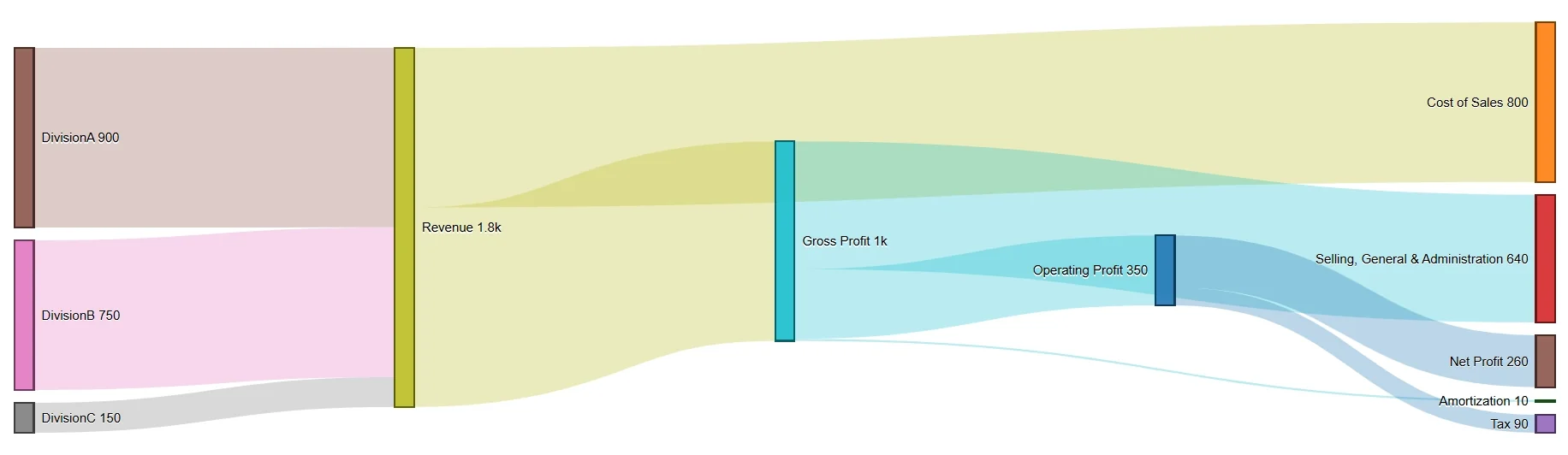
What is a Sankey diagram?
A Sankey diagram shows how a quantity moves from one stage to another. Nodes represent the stages, categories, or entities in your data; the bands connecting them are sized proportionally to the amount flowing between them. The wider the band, the bigger the flow. No legend, no mental math, the size tells the story on its own.
They're named after Captain Matthew Sankey, an Irish engineer who used the technique in 1898 to diagram the energy efficiency of a steam engine. The style predates the name, though: Charles Minard's 1869 map of Napoleon's march into Russia, which shows the army's shrinking size as a flowing band across a map, is still held up as one of the best statistical graphics ever made. Today the same idea shows up everywhere from national energy reports to product analytics dashboards.
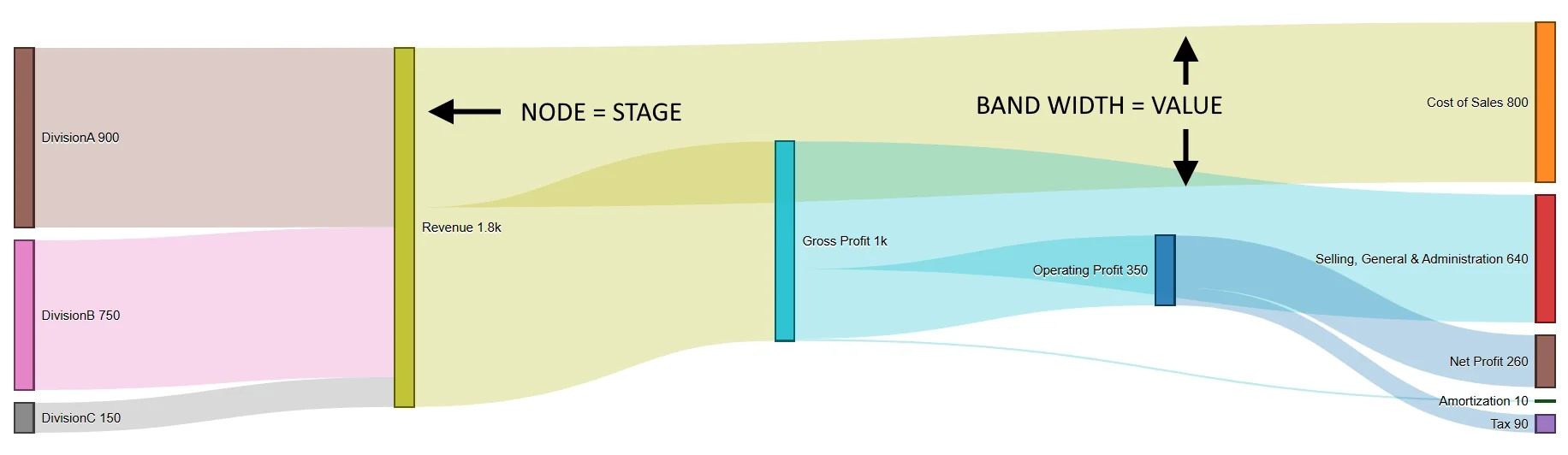
When should you use one?
A Sankey diagram is the right call whenever your data represents flow between stages and you care about both the path and the size of each step. That covers a lot of ground:
- Conversion funnels: how visitors move from landing page to signup to purchase, with band width showing exactly where the drop-off happens
- Energy flow: how coal, gas, and renewables convert into electricity, heat, and waste
- Customer journeys: the actual paths people take through a product, including the dead ends
- Supply chains: materials moving from suppliers through manufacturing to distribution
- Budget allocation: how a total budget splits across departments, teams, and projects
- Migration and transitions: people moving between regions, roles, or life stages
It's the wrong tool when you're comparing static categories (use a bar chart), showing a single value's changes over sequential steps (use a waterfall), tracking a trend over time (use a line chart), or showing a snapshot of parts-of-a-whole with no movement implied (use a pie chart or treemap). If your data doesn't actually represent something moving from one state to another, a Sankey diagram will make it look like it does even when it doesn't. That's a common way these get misused.
How to structure your data
Every Sankey diagram needs the same three things, one row per flow:
| Source | Target | Value |
|---|---|---|
| Organic Search | Homepage | 5,000 |
| Paid Ads | Landing Page | 3,000 |
| Homepage | Product Page | 3,500 |
| Homepage | Exit | 1,500 |
| Landing Page | Signup | 1,800 |
| Product Page | Purchase | 2,100 |
That's it: Source, Target, Value. SankeyBuilder discovers your nodes automatically from whatever unique names show up in the Source and Target columns, so you don't need to define them separately.
One thing worth cleaning up before you upload: make sure the same category is spelled the same way everywhere. "Organic Search" and "organic search" will silently become two different nodes instead of one, and you won't necessarily notice until the diagram looks wrong.
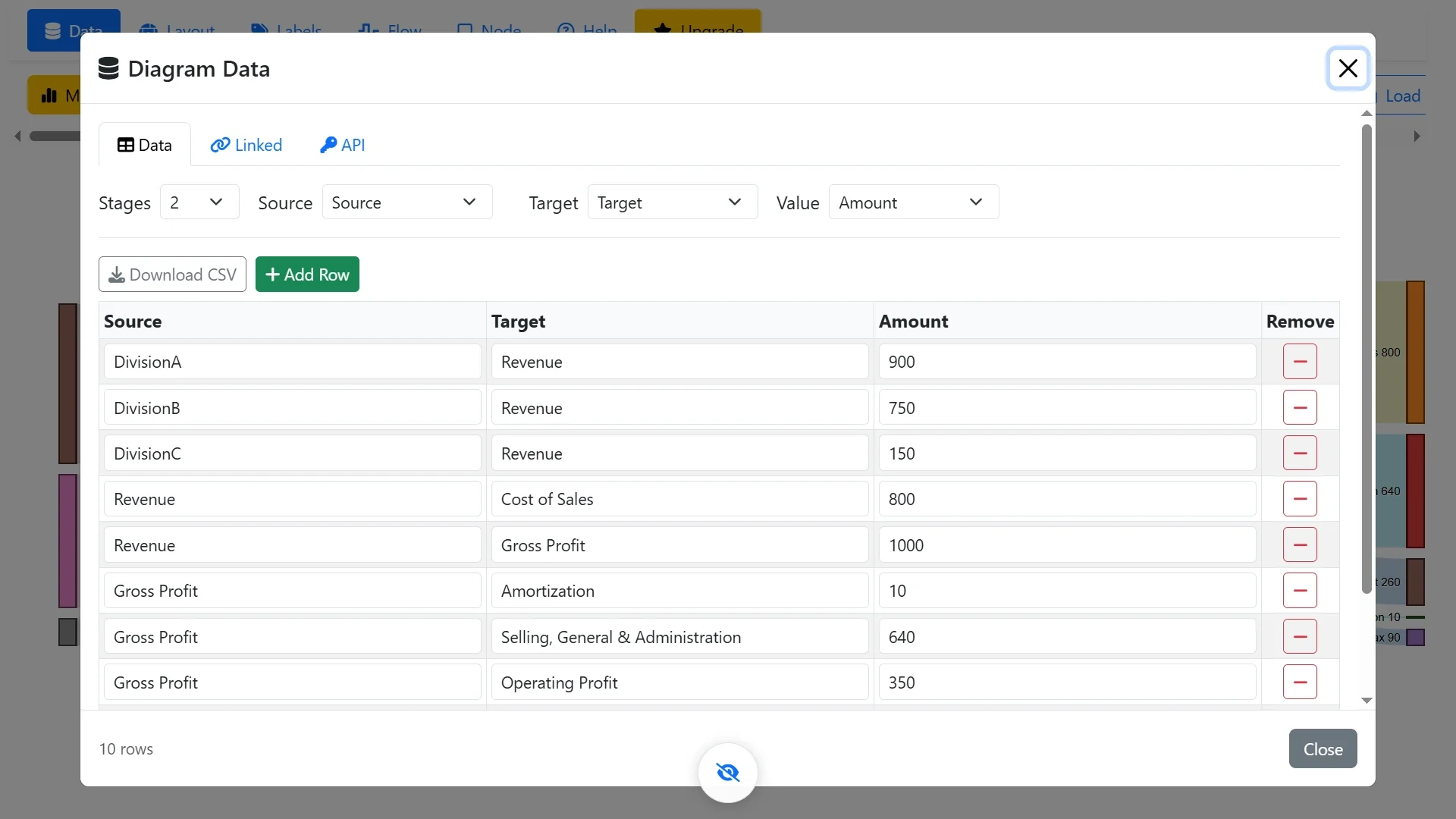
If your data isn't already in that shape
Not every dataset starts as a clean Source/Target/Value table. If yours is a wider table, say a row per transaction with a bunch of other columns, SankeyBuilder's Data Explorer can turn it into flow data for you: it looks at your columns, figures out reasonable stage-to-stage relationships, and proposes several different ways to pivot the same data into a flow, so you're picking from real options instead of guessing at a spreadsheet formula.
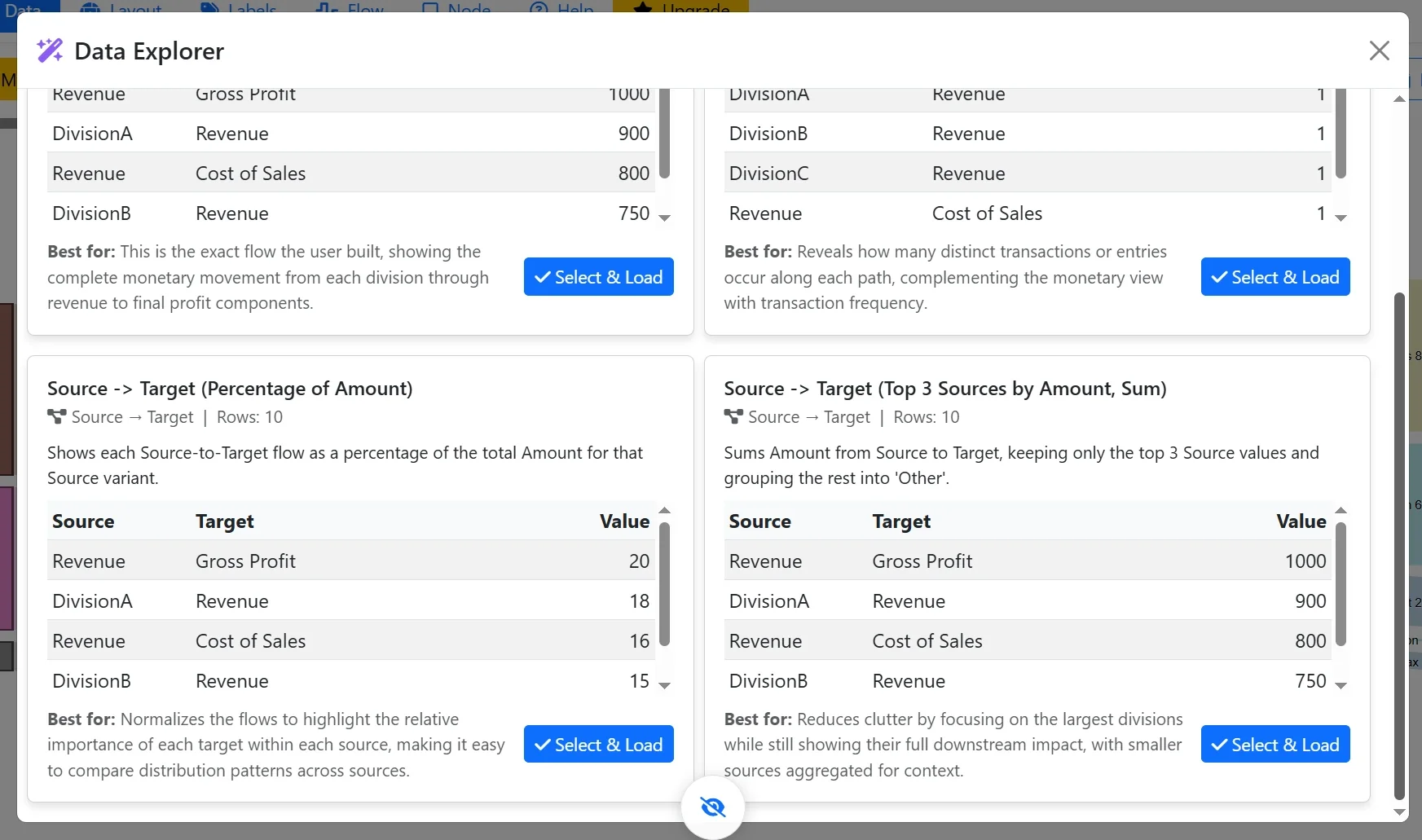
Building the diagram, step by step
1. Get your data in
Open the Data tab and upload a CSV file or start from one of the built-in sample datasets if you just want to try the tool out first.

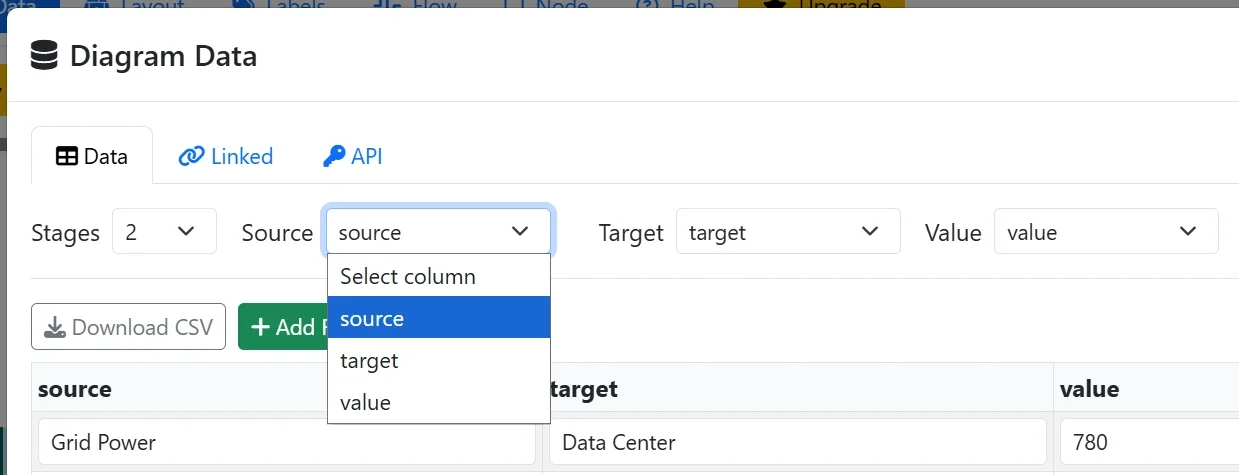
2. Map your columns
Tell SankeyBuilder which column is the source, which is the target, and which is the value. If you skipped straight here with unshaped data, this is also where you'd reach for Explore first.
3. Narrow it down if you need to
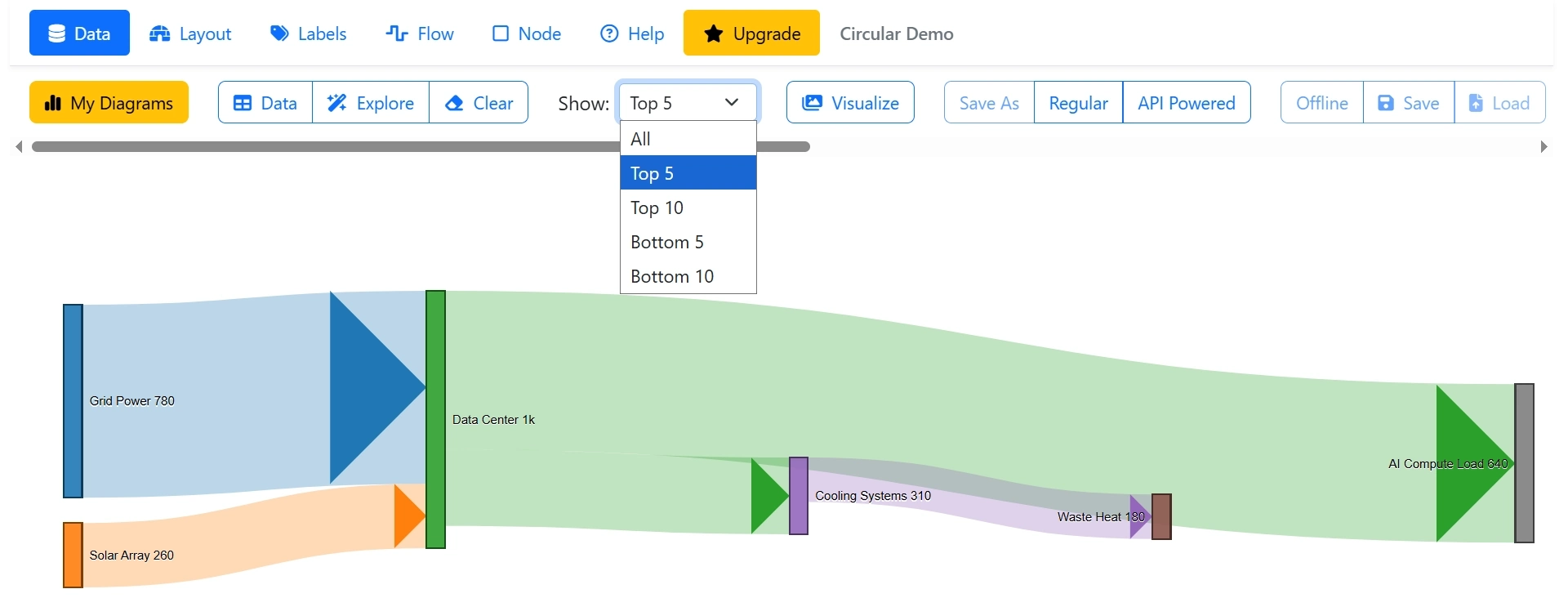
Real datasets are often bigger than what's actually useful to look at. Rather than manually deleting rows, use the Show filter to instantly view just the Top 5, Top 10, Bottom 5, or Bottom 10 flows by value. The diagram updates immediately, and everything downstream (styling, AI insights, exported prompts) works from that same filtered view.
4. Style it
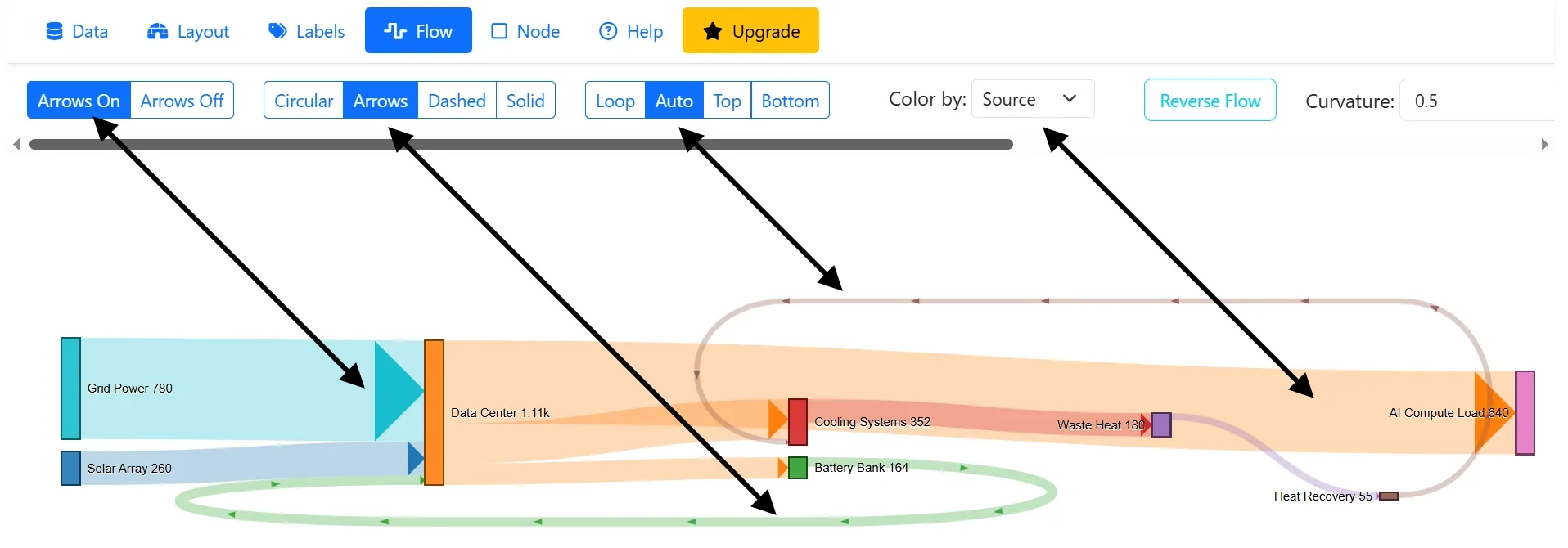
Adjust node colors, band opacity, layout width/height, and path curvature until the diagram reads clearly. A few defaults matter more than they look: semi-transparent bands (so overlapping flows stay visible instead of hiding each other), and left-to-right flow direction, which is the convention nearly everyone expects when they look at one of these.
5. Get insight on what you're looking at
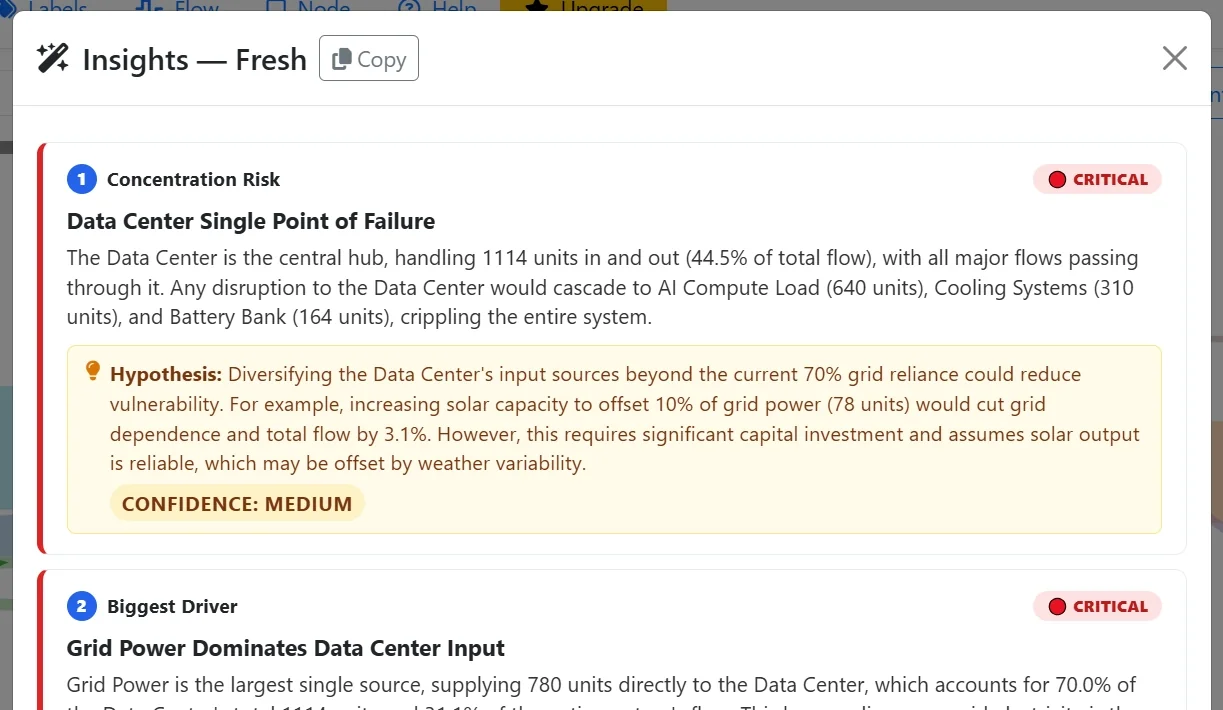
Once your diagram is built, Flow Intelligence will analyze it and surface the things worth knowing (the biggest drop-offs, unexpected concentrations, loops worth flagging) without you having to eyeball every band yourself.
6. Save it
Save as a Regular diagram to keep working on it, or as a Linked/API diagram if you want it to stay connected to a live data source instead of a static snapshot.

A few real examples
Website traffic. Traffic sources (Organic, Paid, Social, Direct) flow into entry pages, then split toward product pages, pricing, signup, or exit. Laid out this way, it's immediately obvious if organic traffic converts at a meaningfully higher rate than paid, something that's much harder to spot in a table of numbers.
Budget. A total budget flows into department buckets (Engineering, Marketing, Sales, Operations), each of which splits further into specific line items (Salaries, Tools, Travel, Ad Spend). Laid out this way, it's immediately obvious which department is actually driving spend versus which one just has the most line items, something a stacked bar chart tends to flatten into noise.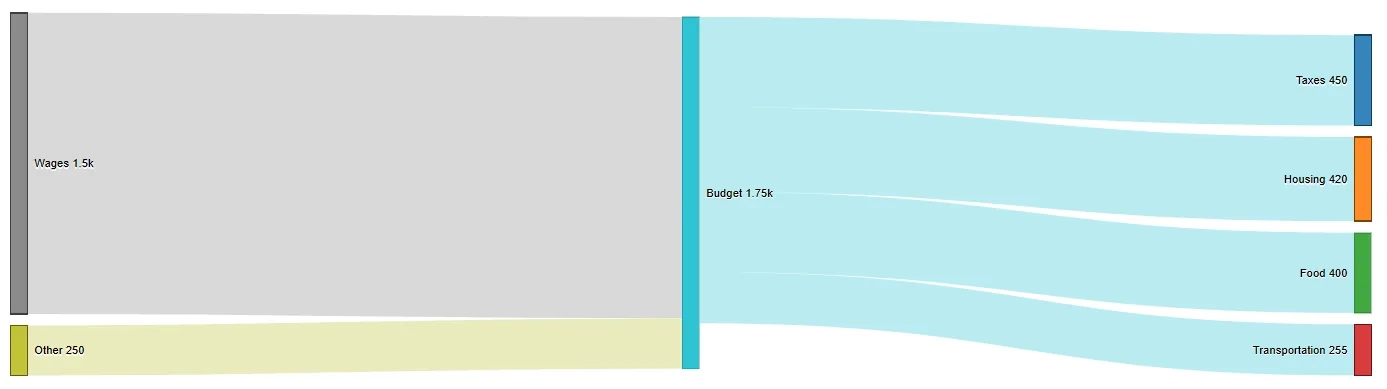
Energy. Primary energy inputs (oil, gas, coal, renewables) flow through power plants and refineries into end-use sectors: residential, industrial, transportation. A big band flowing into "waste heat" tells you exactly where the system is inefficient, at a glance.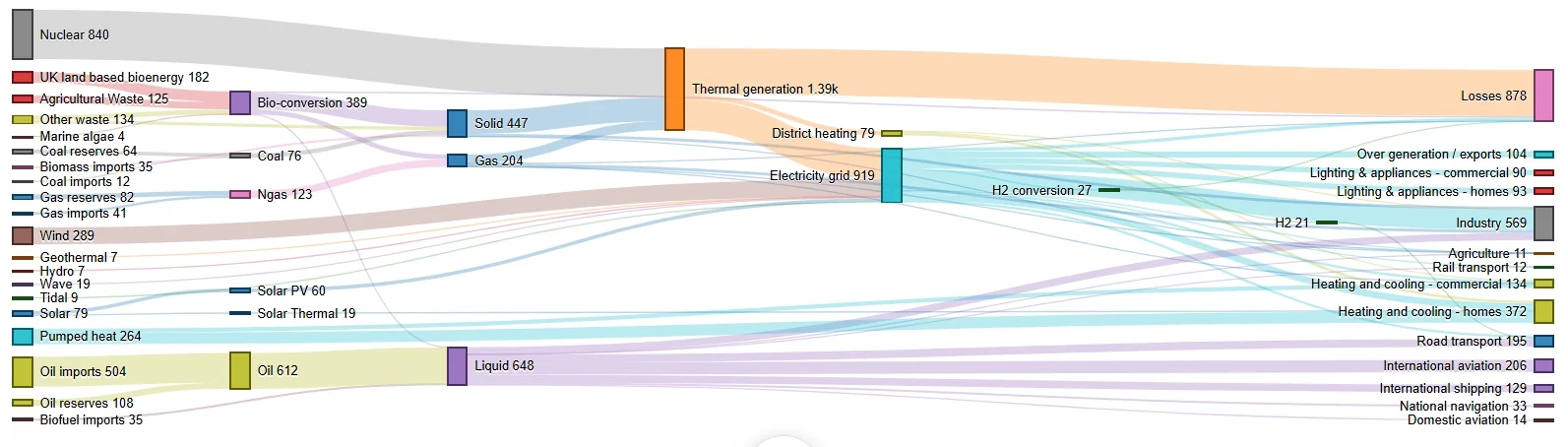
Interviews. Applications flow into three outcomes: rejected, no answer, or moved to a first interview. The width of the "Rejected" band next to "First Interview" tells a hiring team exactly how selective the process really is, without anyone having to ask for a percentage or build a separate funnel report.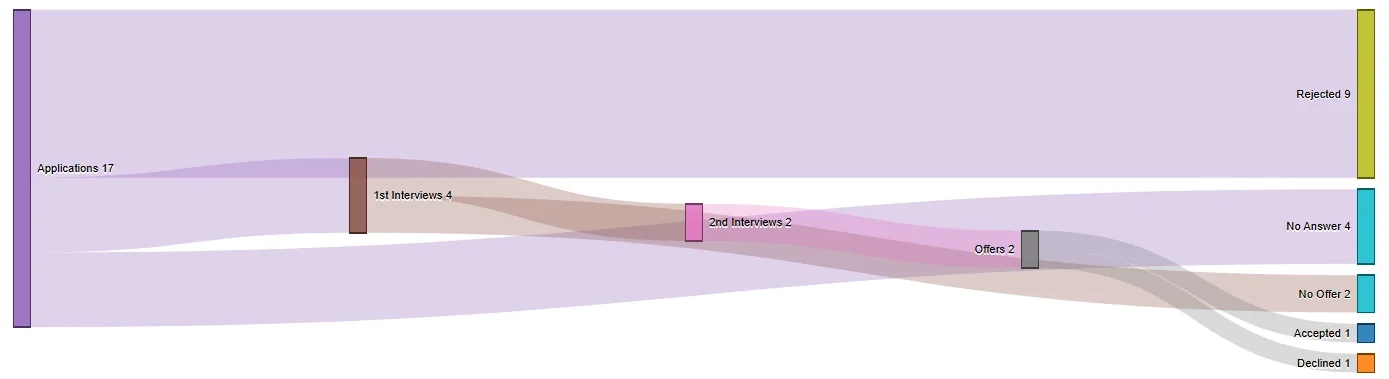
Budget. A total budget flows into department buckets (Engineering, Marketing, Sales, Operations), each of which splits further into specific line items (Salaries, Tools, Travel, Ad Spend). Laid out this way, it's immediately obvious which department is actually driving spend versus which one just has the most line items, something a stacked bar chart tends to flatten into noise.
Best practices
- Keep it to roughly 15-20 nodes. Past that, even a well-built diagram starts to look like a tangle. Group smaller categories into "Other" rather than showing every single one.
- Color by source. Give each starting node its own color and carry that color through every band flowing from it. It lets a viewer trace a path with their eyes alone, no legend needed.
- Label the big bands with their actual value. Width alone is good for relative comparison, but people can't read an exact number off a shape. Show the number too.
- Use semi-transparent bands, roughly 40-60% opacity, so overlapping flows stay legible instead of one hiding behind another.
- Flow left to right. It's the convention for a reason: anything else makes people work harder to read something that should be immediate.
Common mistakes
- Too many thin bands. Fifty bands where forty are hairline slivers isn't detail, it's noise. Filter out anything below a meaningful threshold, or merge small flows into "Other."
- Inconsistent node names. "Email" and "email" become two separate nodes if you're not careful. Clean your category names before you upload.
- No value context. A band that looks wide next to its neighbors might still represent a small absolute number. Always label the ones that matter.
- Forcing non-flow data into a Sankey. If nothing in your data is actually moving from one state to another, a Sankey diagram implies a transfer that isn't real. Use a bar chart or treemap instead.
A note on circular flows
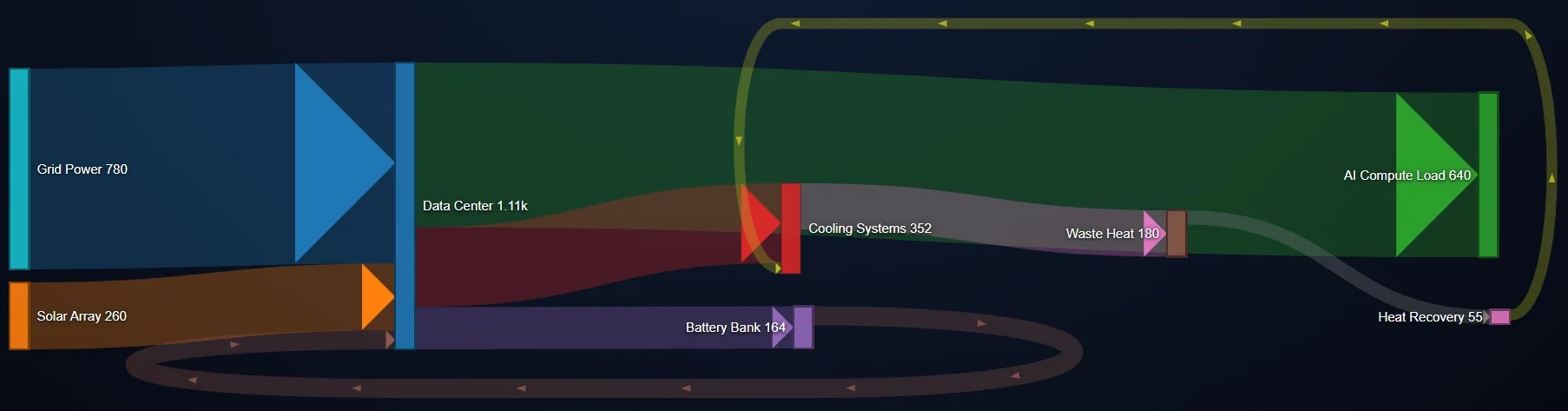
Most Sankey guidance tells you to avoid circular flows entirely: A flowing back to A breaks the assumption most tools make that flow only ever moves forward. SankeyBuilder handles this differently: it detects and tags circular flows rather than erroring out on them, so if your real data genuinely loops (a support ticket bouncing between departments, a product returning through the same supply stage twice), you don't have to artificially flatten it into a straight line to get a working diagram.
Making it accessible
Sankey diagrams lean heavily on color and spatial position, which can leave some viewers out if you're not deliberate about it:
- Use a colorblind-safe palette: vary hue, saturation, and brightness, not just hue.
- Label every node and every significant band with text, not just position.
- Give the diagram a specific, descriptive title: "Customer Journey From Ad Click to Purchase Q1 2026" tells a screen-reader user what they're looking at; "Flow Diagram" doesn't.
- Keep enough contrast between bands and background. Pale, low-opacity bands on a white background are hard to see for a lot of people, not just those with low vision.
FAQ
What data format do I need? Three columns: source, target, and a numeric value, one row per flow. CSV (comma separated) or TSV format (tab separated).
What's the difference between a Sankey diagram and a waterfall chart? A waterfall shows one value changing through a sequence of additions and subtractions. A Sankey shows quantities branching and merging across multiple paths at once. Waterfall is linear; Sankey is a network.
What's the difference between a Sankey diagram and a treemap? A treemap shows a static breakdown: what the parts of a whole look like right now. A Sankey shows movement: how those parts got there, or where they're going next.
How many nodes and links should I aim for? Somewhere around 5-20 nodes and 10-40 links is the sweet spot. Fewer than that and a simple table would do the job just as well; more than that and the diagram stops being readable without heavy filtering.
What's an alluvial diagram? A specific style of Sankey used for tracking categorical changes across time periods: each vertical slice represents a point in time, and the flowing bands show how entities move between categories from one slice to the next. It's a subset of the same idea, not a different chart type.
Build your first one
A Sankey diagram takes a multi-step, branching process and makes it scannable in one glance: where things start, where they end up, and how much moved along the way. Upload your data, map it to Source/Target/Value (or let Explore do the mapping for you), and you'll have a working diagram in a couple of minutes.
Discussion