How to turn Any Dataset Into a Consistent AI Slide Deck
If you've ever tried to turn a spreadsheet into a slide deck using AI images, you already know the problem this post is about to fix.
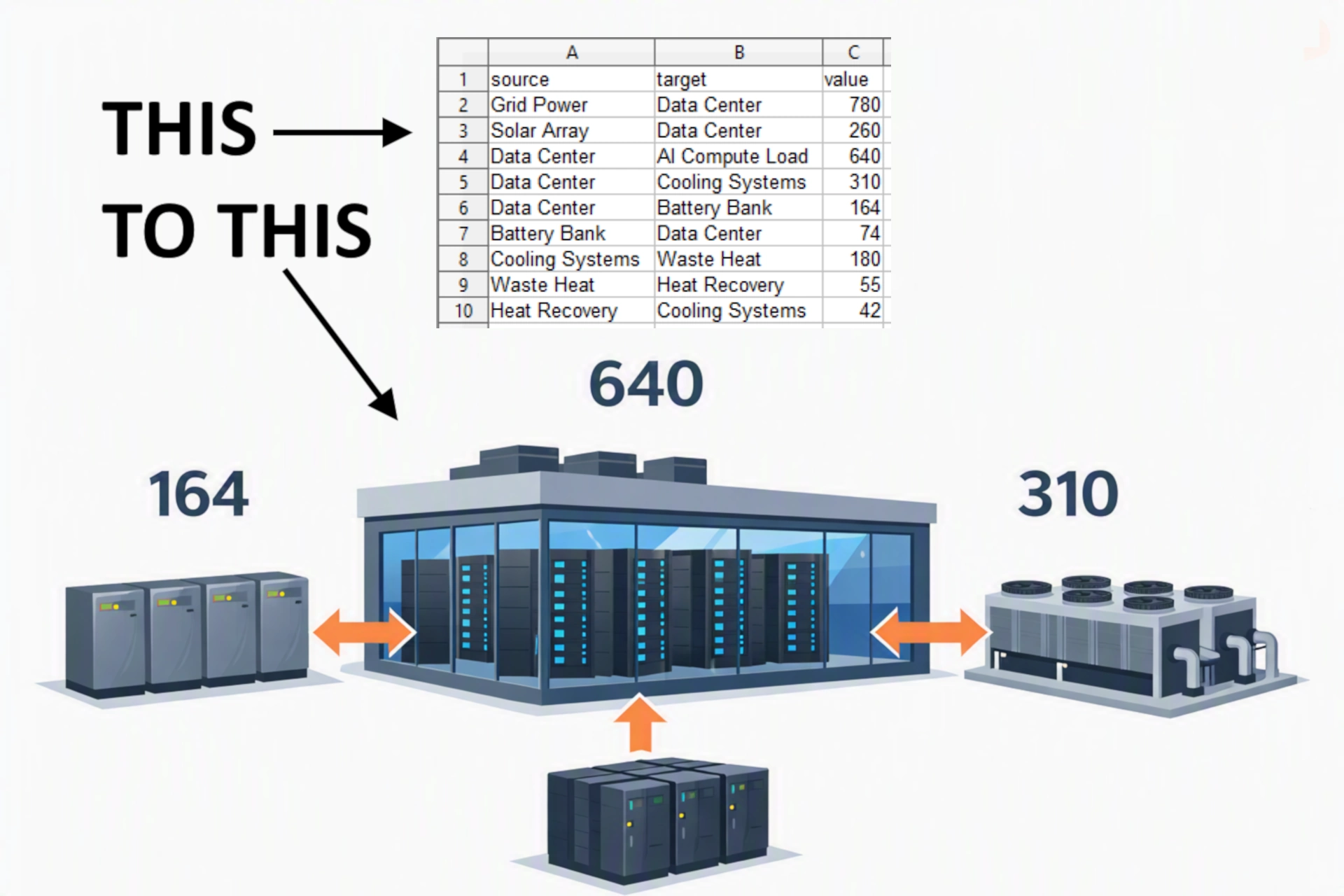
The problem: AI images have no memory
Here's what happens every time. You've got data - sales by region, a budget breakdown, an energy flow, whatever it is - and you want it as a visual slide deck. So you ask an AI image generator to illustrate it, one image per slide.
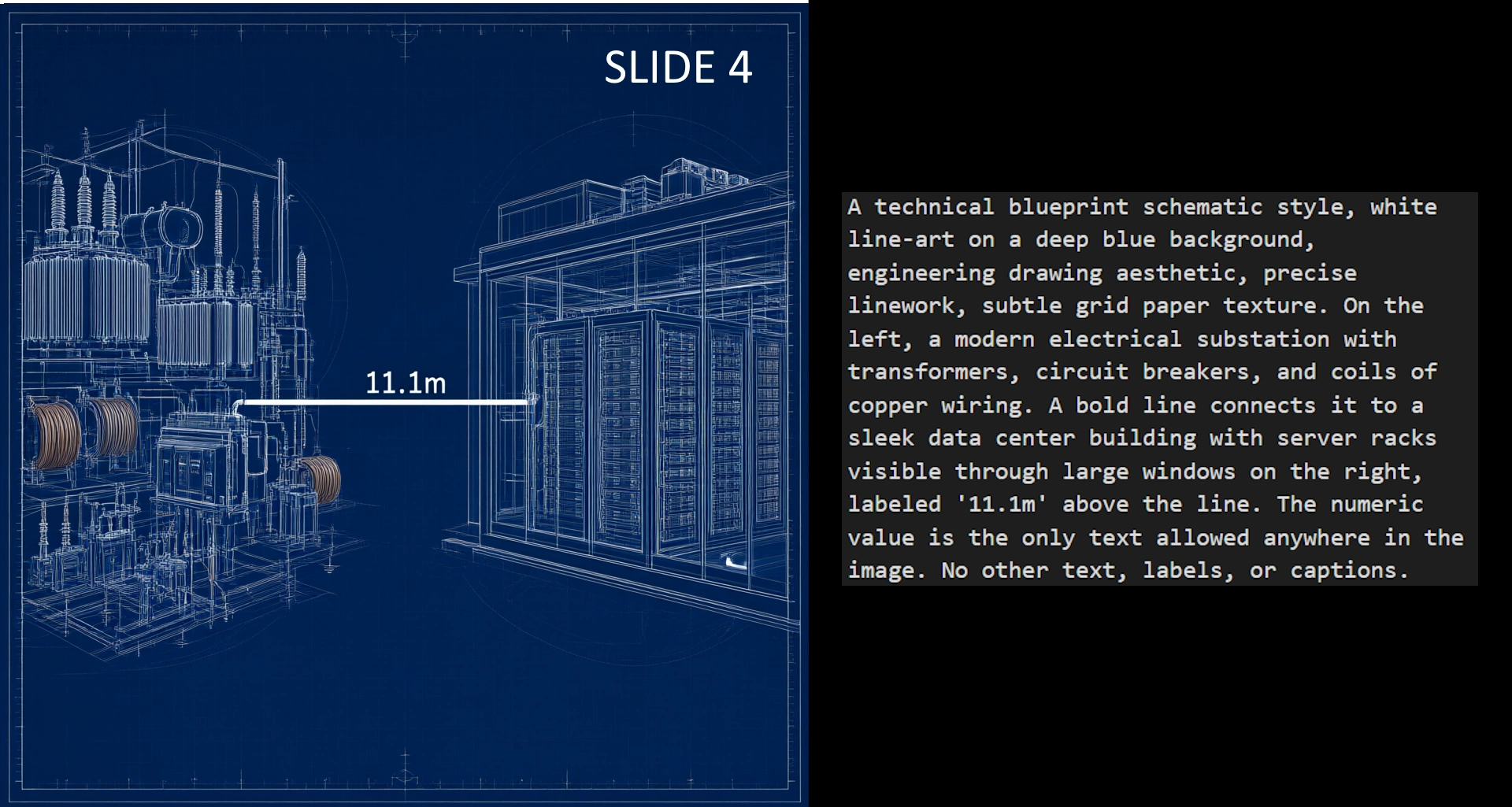
Say two of your slides both involve "Electricity." You write a prompt for slide one and get transmission towers stretching across a landscape. Later, you write a prompt for slide four - same entity, same data - but you didn't reuse your own wording, so this time you get a substation building with transformers and coils of wire.
Both are reasonable images. Neither one is wrong. They're just not the same thing, and your audience has no way to know that's supposed to be the same "Electricity" from slide one.
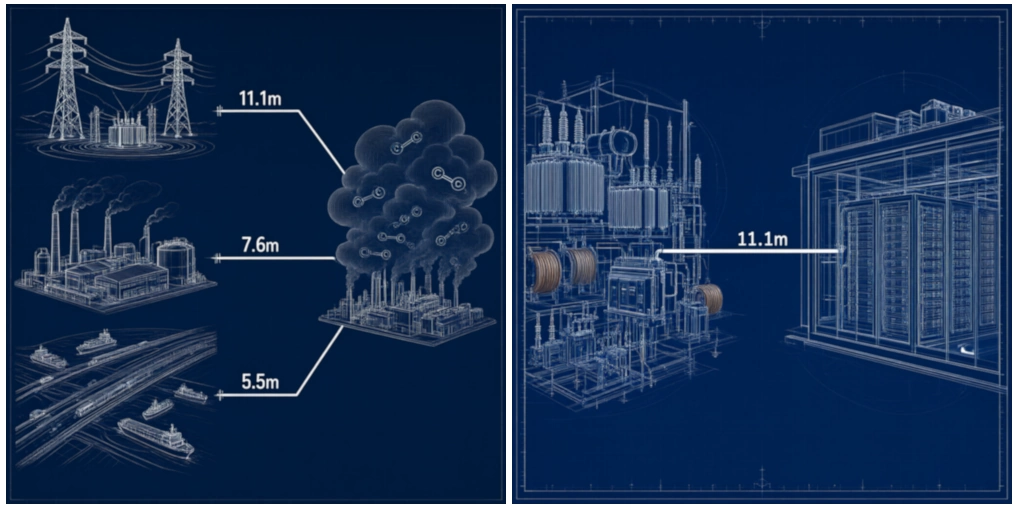
Prompt A:
A technical blueprint schematic style, white line-art on a deep blue background, engineering drawing aesthetic, precise linework, subtle grid paper texture. ...a high-voltage transmission tower with power lines stretching across a landscape, with glowing substations and transformers at their bases, connects to the smoke cloud with a line labeled '11.1m'...
Prompt B:
A technical blueprint schematic style, white line-art on a deep blue background, engineering drawing aesthetic, precise linework, subtle grid paper texture. On the left, a modern electrical substation with transformers, circuit breakers, and coils of copper wiring. A bold line connects it to a sleek data center building... labeled '11.1m' above the line.
Notice neither prompt ever writes the word "Electricity" as on-image text - there's genuinely no way for a viewer to know these are supposed to be the same thing without being told.
That's not a fluke. That's what happens every time you write these by hand, slide by slide, because there's nothing forcing you to remember your own phrasing three slides later. No tool does this for you. Today, it's on you to catch it - and most people don't, because most people don't even think to check.
I asked another AI if this already existed
Before building the fix, I asked Gemini whether a tool like this already existed. Its answer, verbatim:
"Currently, there is no single automated tool on the internet that can instantly take a raw Excel dataset and convert it directly into 3D hyper-realistic glowing power plant images with custom numbers painted on the pipes. However, you can perfectly recreate this exact pipeline today by combining Data Transformation Tools with AI Art Tools using specific prompts."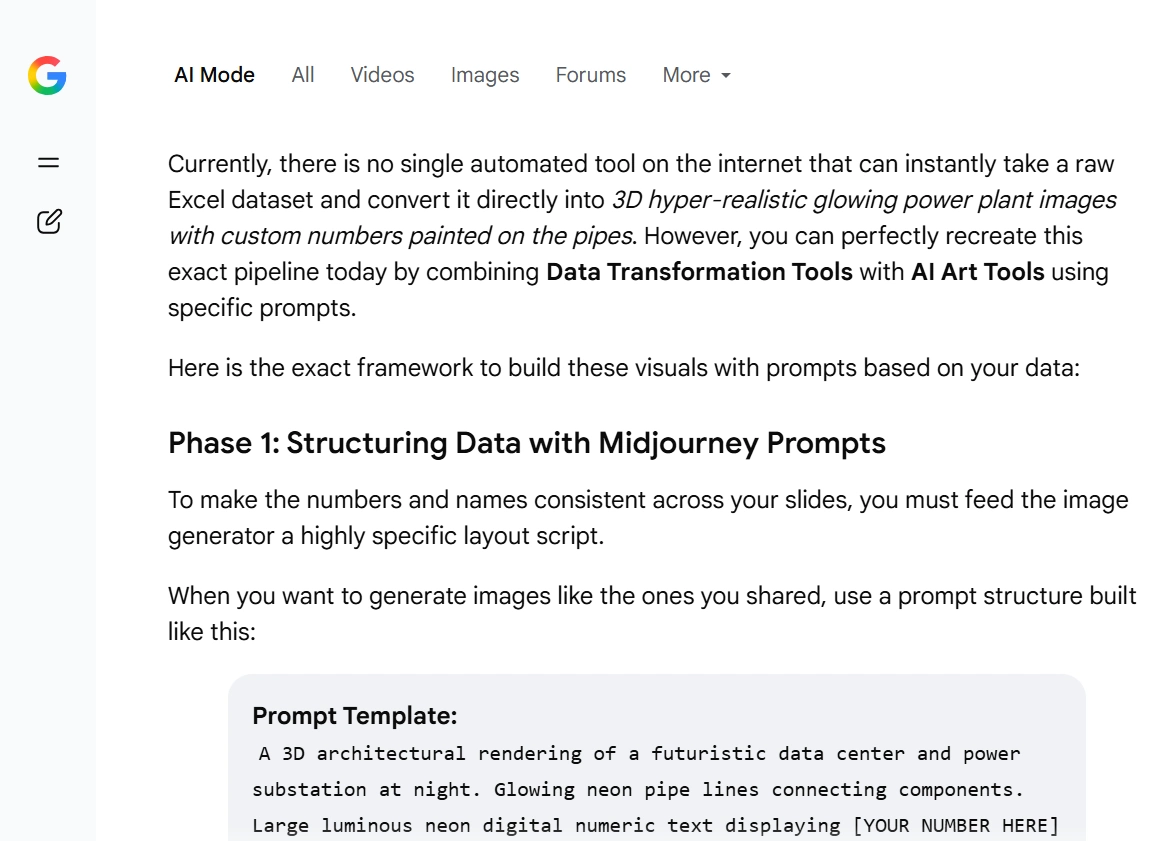
That last sentence is doing the same job as the explanation above: a second, independent AI landed on the identical gap. The pieces exist - you can chain a data tool and an AI art tool together - but nobody had packaged that chain into one tool. So we built the chain into one tool.
The fix: Visual Prompts
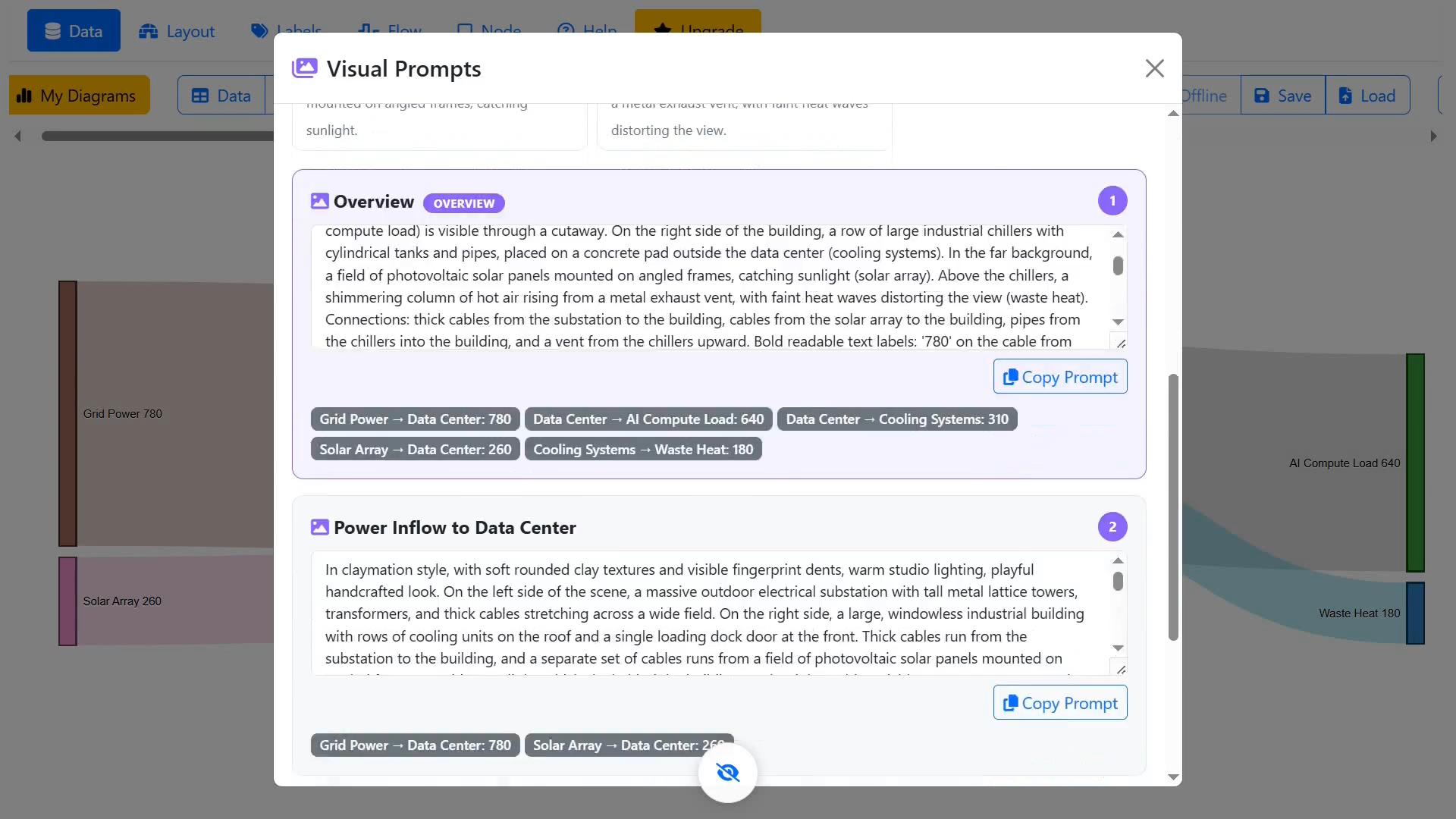
It's called Visualize, and it's part of SankeyBuilder. One click turns your dataset into a full set of AI-image-generation prompts - one per slide - and every entity that shows up more than once gets locked to the exact same description, every single time. Same look, every slide, guaranteed.
How to actually do this, step by step
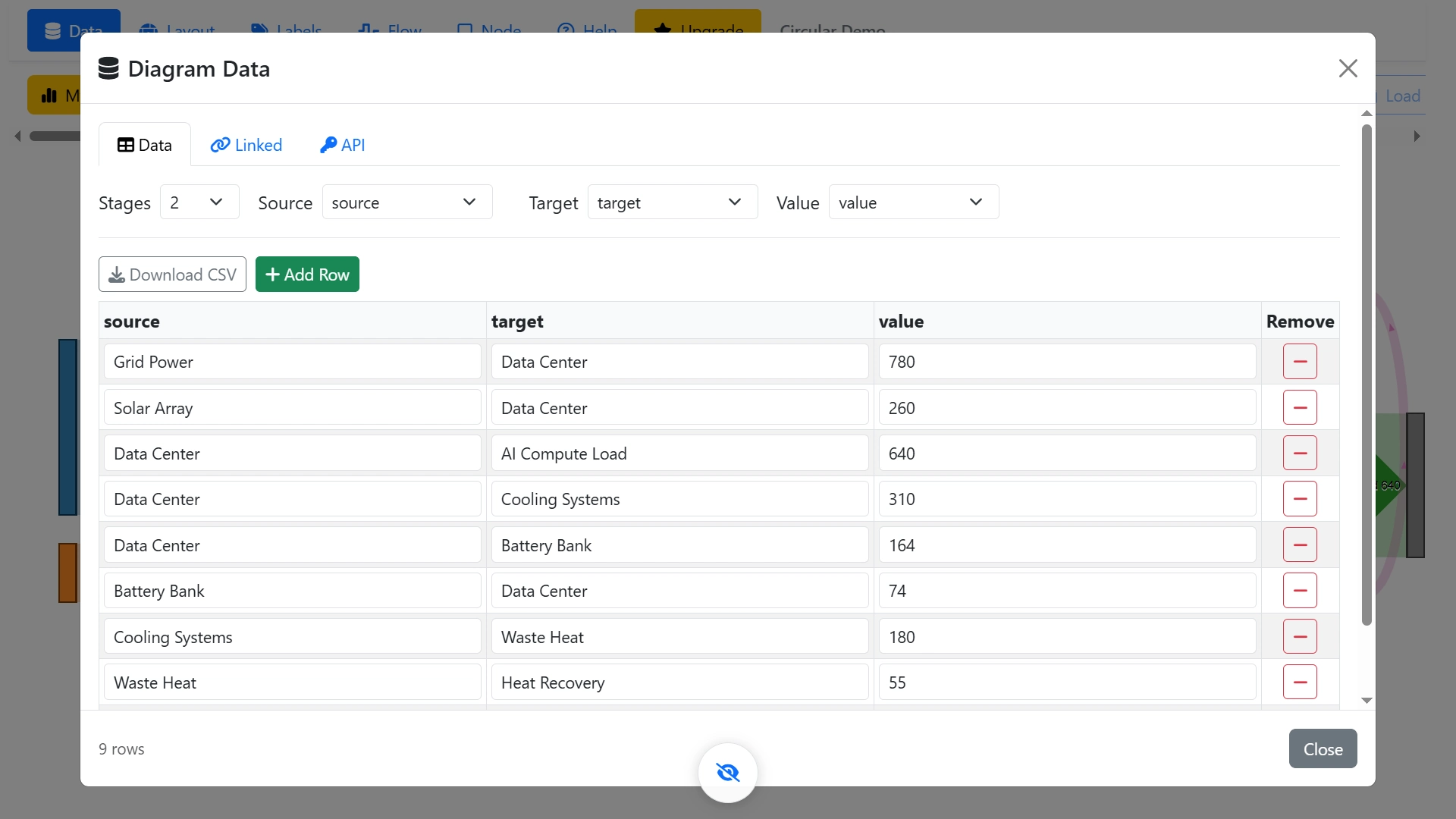
This is a real dataset - energy flow through a data center, source, target, and value, nothing fancy.
1. Narrow your data down (optional, but worth doing first)
Before generating anything, you can filter the diagram itself down to Show: Top 5 (or Top 10, or Bottom 5/10) - instantly, the diagram, and everything downstream of it, is working from just the five biggest flows instead of the whole dataset.
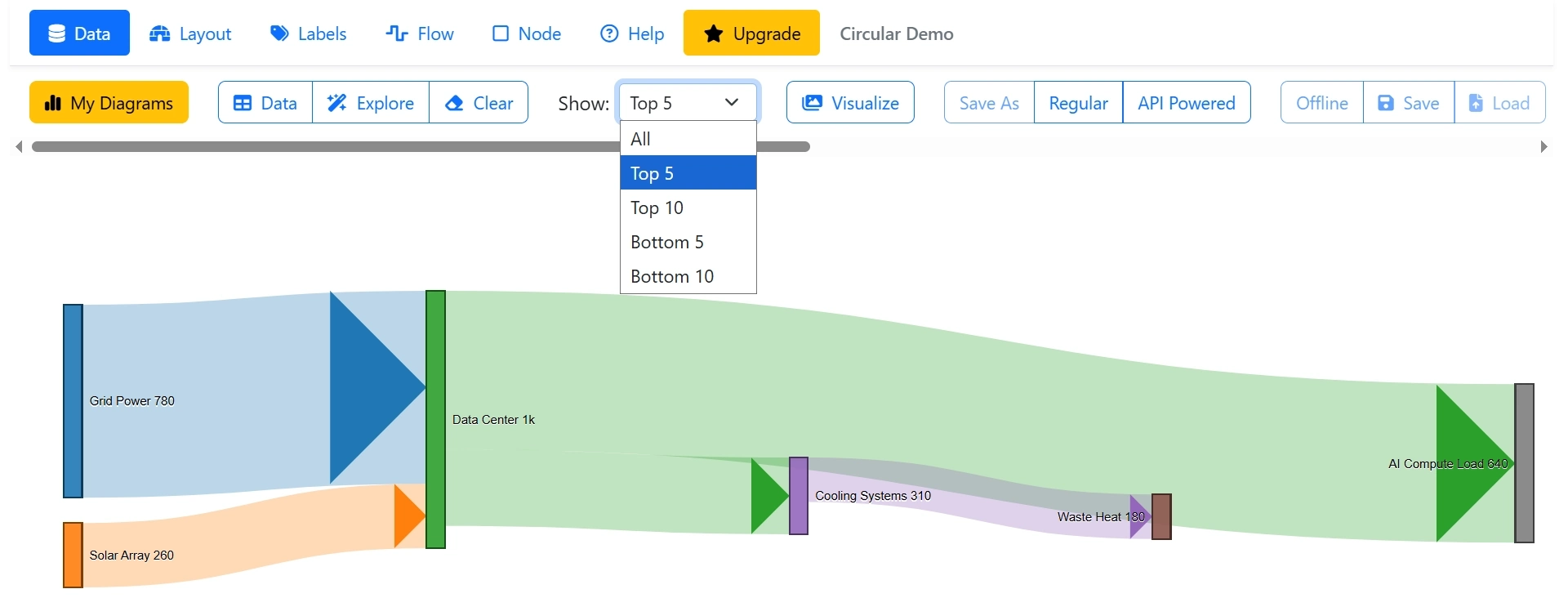
2. Click Visualize
Pick a style - flat vector, isometric, photorealistic, cyberpunk, corporate clean, watercolor, claymation, blueprint, comic book, or paper collage - choose how many slides you want, and hit Generate.
That's it. One AI call, and you've got a full set of prompts, one per slide, ready to paste into whatever image generator you already use.
3. Check the Cast of Characters
This is the part that actually matters: every entity in your dataset gets one locked visual description, shown in plain English above your generated prompts.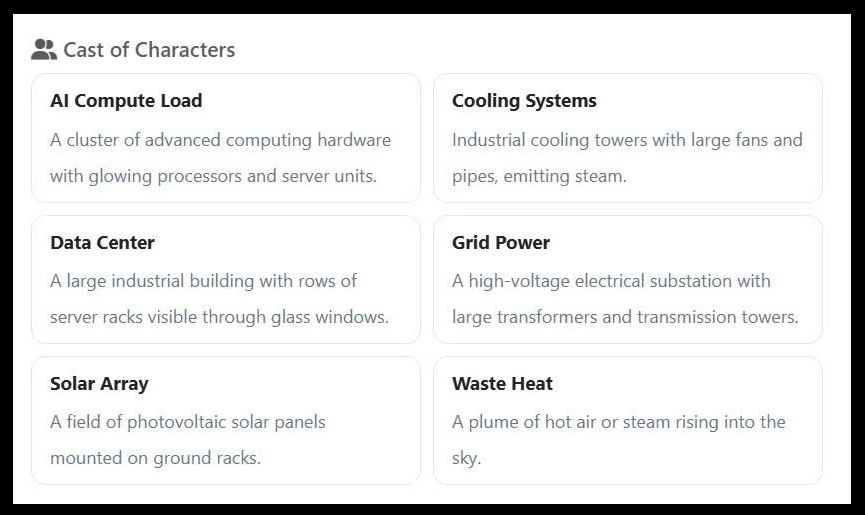
Open any two of the generated prompts side by side, and you'll find the same entity described with the exact same wording in both - not a coincidence, the whole point.
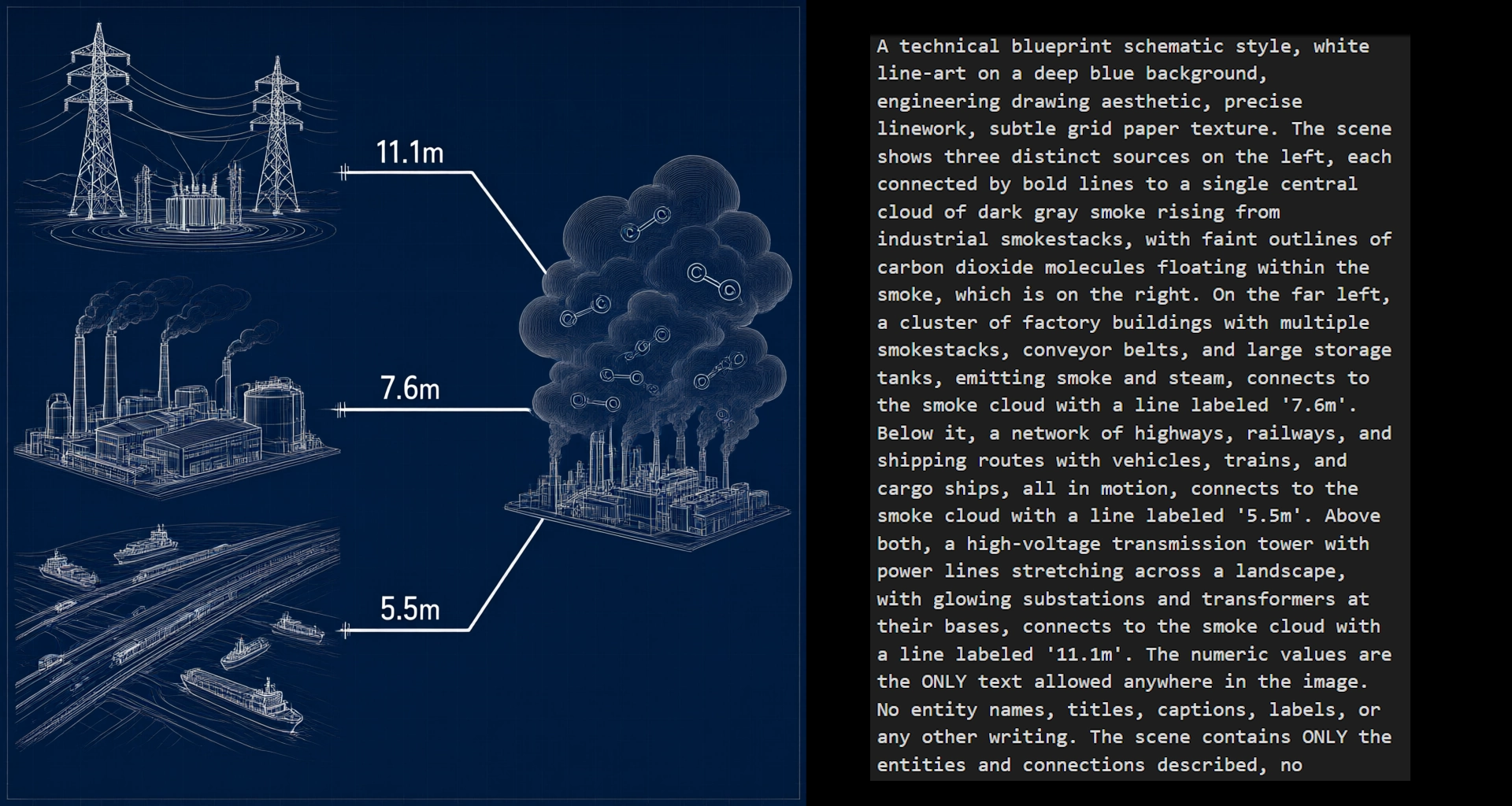
4. Paste into your image generator - and stick with one
Copy each prompt and drop it into your image generator of choice. We've had the best results using wavespeed.ai/image-generator with the Seedream 5 model.
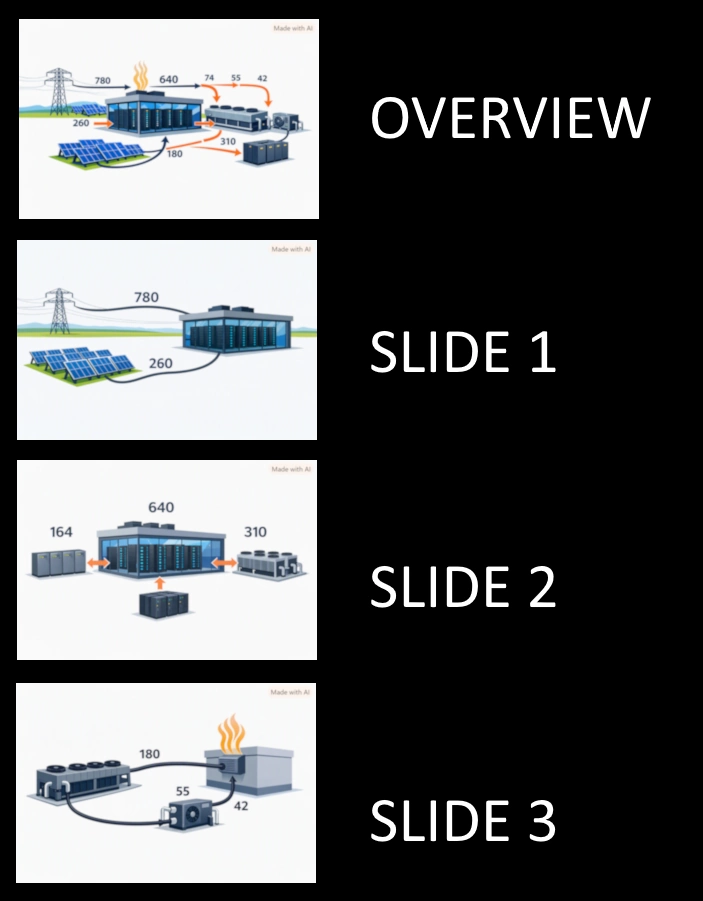
One rule matters more than which tool you pick: use the same generator and the same model for every slide in a set. The consistency Visual Prompts builds into the text only carries through if every slide is actually rendered by the same engine - switching generators partway through a deck reintroduces the exact mismatch this whole workflow exists to prevent.
Same building. Same visual language. Every slide. This is a real deck, built from a real dataset, in about two minutes.
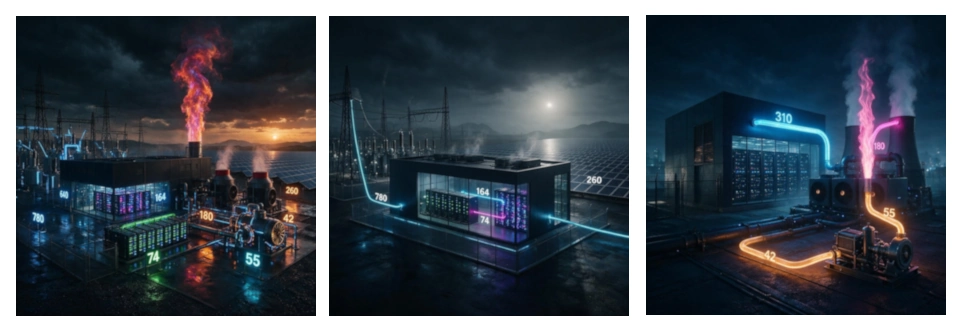
It's not locked to one look
Ten styles, same consistency guarantee, every time: flat vector, isometric, photorealistic, cyberpunk, corporate clean, watercolor, claymation, blueprint, comic book, paper collage.
Why this matters beyond Sankey diagrams
This works on flow data today -source, target, value, the same shape every Sankey diagram needs. But the idea isn't really about Sankeys. It's about giving AI image generators a memory they don't naturally have. Any dataset with entities that repeat across a story - sales regions, org charts, supply chains, customer journeys - is a fit for this.

Try it
If you've ever built an AI slide deck and had to explain to your own audience which building was supposed to be which - this is for you. Visualize is live in SankeyBuilder right now. A full walkthrought is available on YouTube: https://youtu.be/WVgYM1PJjN4?si=H1Ld1xDe2CYjdJ6E
Discussion