Free To Start✦ Flow Intelligence Reports✦ Live Google Sheets Linking✦ API-Powered Diagrams✦ Embed Anywhere✦ Fully Customizable✦ One-Click Share Links✦ No Design Skills Needed✦ Free To Start✦ Flow Intelligence Reports✦ Live Google Sheets Linking✦ API-Powered Diagrams✦ Embed Anywhere✦ Fully Customizable✦ One-Click Share Links✦ No Design Skills Needed✦
Advanced Sankey diagram builder

Turn Your Data Into
Beautiful Flow Diagrams.

Build, style, and share Sankey diagrams - link a live Google Sheet, push data straight from your own systems via the API, or let Explore turn any dataset into a diagram for you, with or without a value column to sum. Then let Flow Intelligence turn it into strategic decisions: severity-flagged findings and a ranked priority list of what to act on first.

Style

Fully customizable

Link

Live Google Sheets

API

Push data directly

Steps

Up to 5-stage flows

Flow Intelligence

Insights + priorities

Share

One-click embeds

flow intelligence

Turn Your Data Into
Strategic Decisions.

One click reads your entire diagram and hands back exactly what to look at first - not just a prettier chart, an actual recommendation you can act on today.

Every report starts here

Your Diagram, Instantly Documented

The report opens with a clean image of your diagram, so anyone opening it - even a colleague who's never touched the app - knows exactly what the findings below are describing.
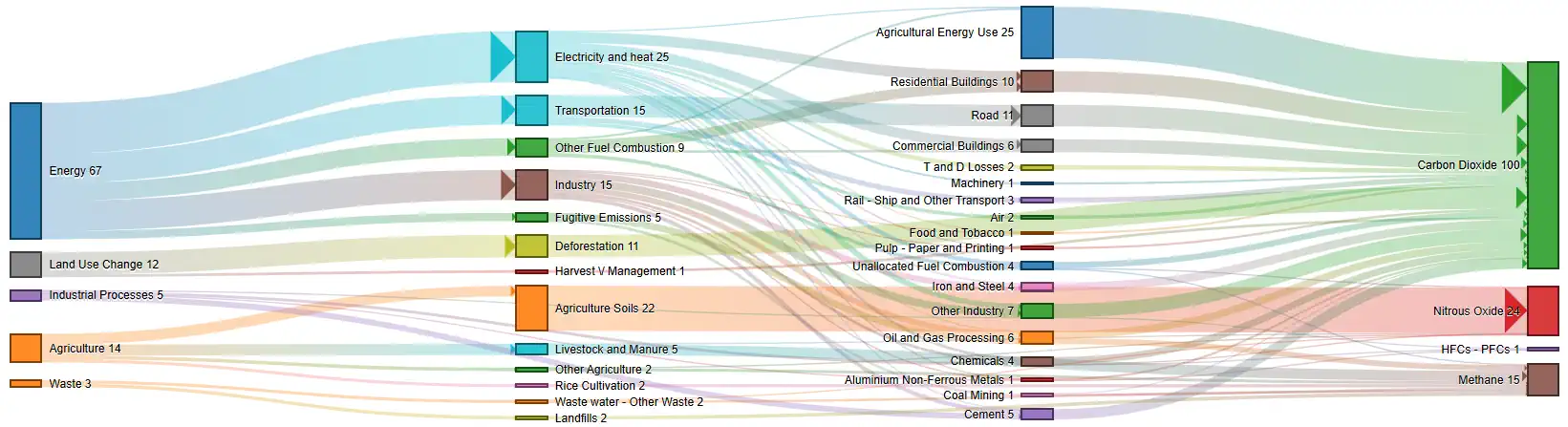
Flow Intelligence Report - Diagram
Flow Intelligence report opening page showing an Energy Sankey diagram

Click any image to enlarge

Key insights

Findings, Ranked by Severity

Each finding is flagged 🔴 Critical, 🟡 Watch, or ⚪ Minor, with a plain-language hypothesis - a concrete, quantified "if you changed this, here's the effect" - so nothing important gets buried in the numbers.
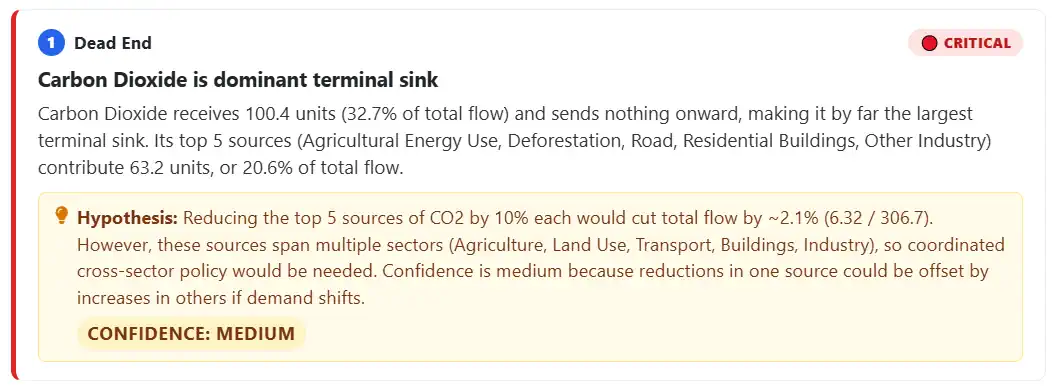
Flow Intelligence Report - Key Insights
Flow Intelligence report findings page showing Critical, Watch, and Minor severity-flagged insights
Priority matrix

A Ranked List of What to Act On First

Findings are grouped and ranked by a Risk-Adjusted Score that weighs impact against confidence - so a big number you're not sure about won't outrank a smaller one you can act on today.
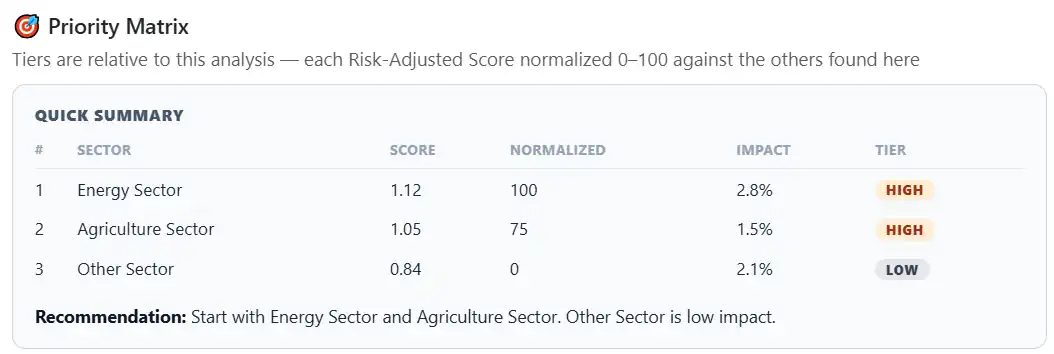
Flow Intelligence Report - Priority Matrix
Flow Intelligence report Priority Matrix page showing a ranked list of findings with risk-adjusted scores
Tiers, explained

What High, Medium, and Low Actually Mean

Tiers are always relative to this diagram, not a fixed scale - every finding is normalized against every other one in the same report, so "High" always means "start here," whether your diagram has 10 flows or 1,000.
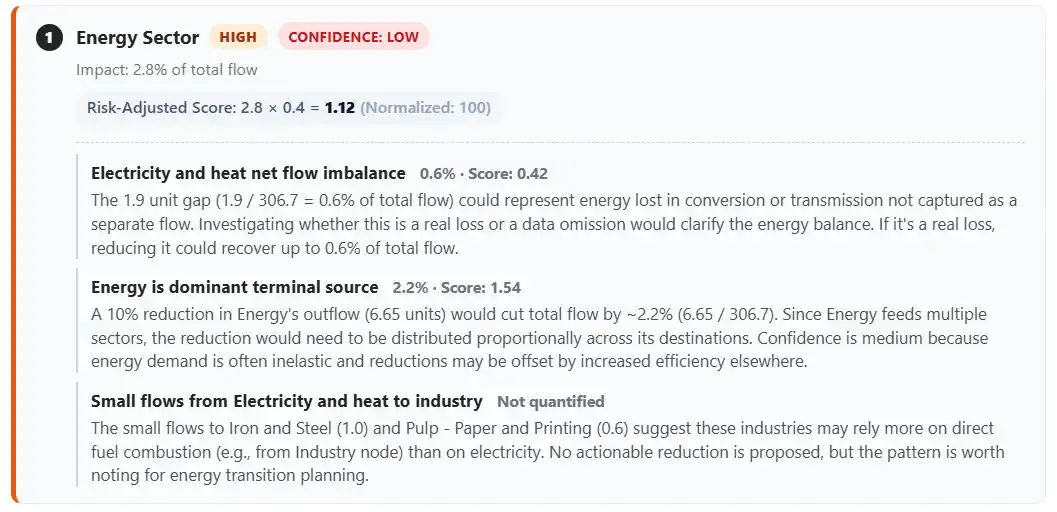
Flow Intelligence Report - Tier Legend
Flow Intelligence report tier legend showing High, Medium, and Low priority badges

Click any image to enlarge

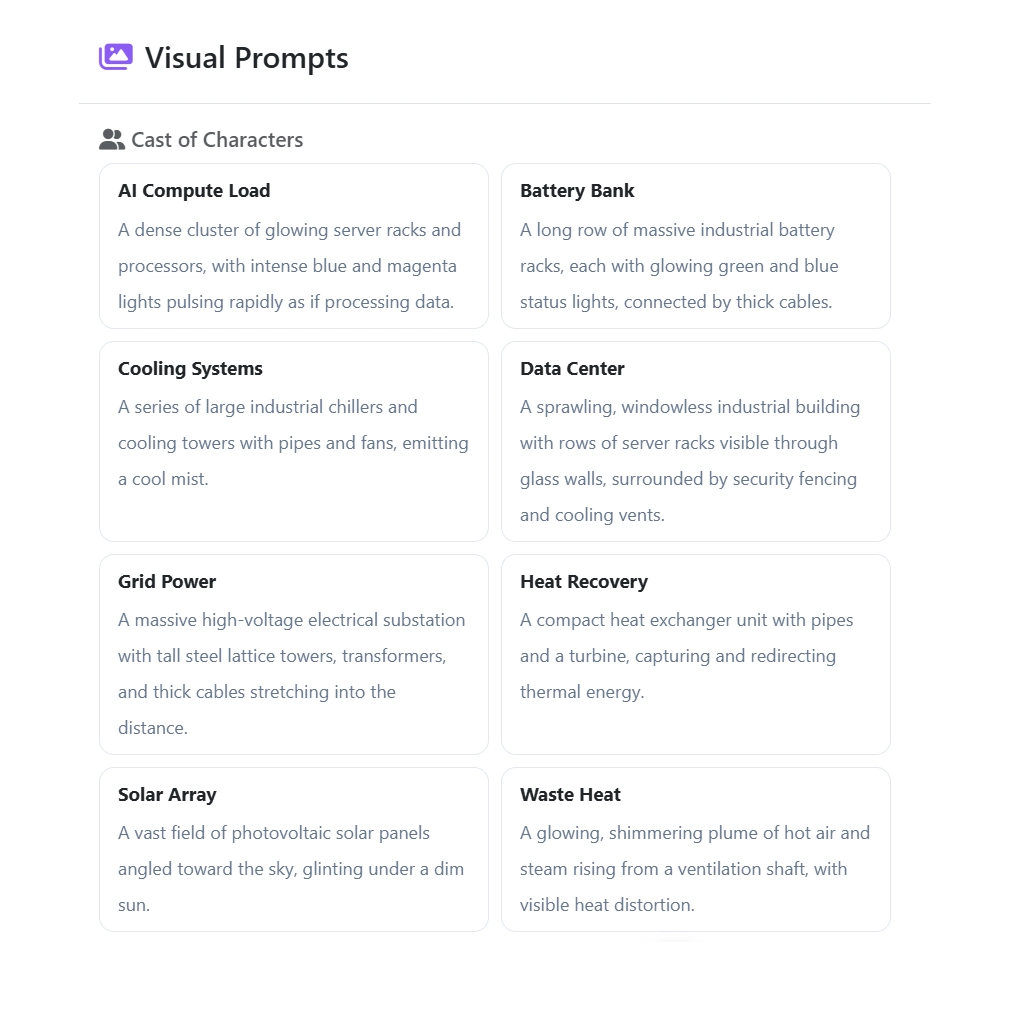
visual prompts

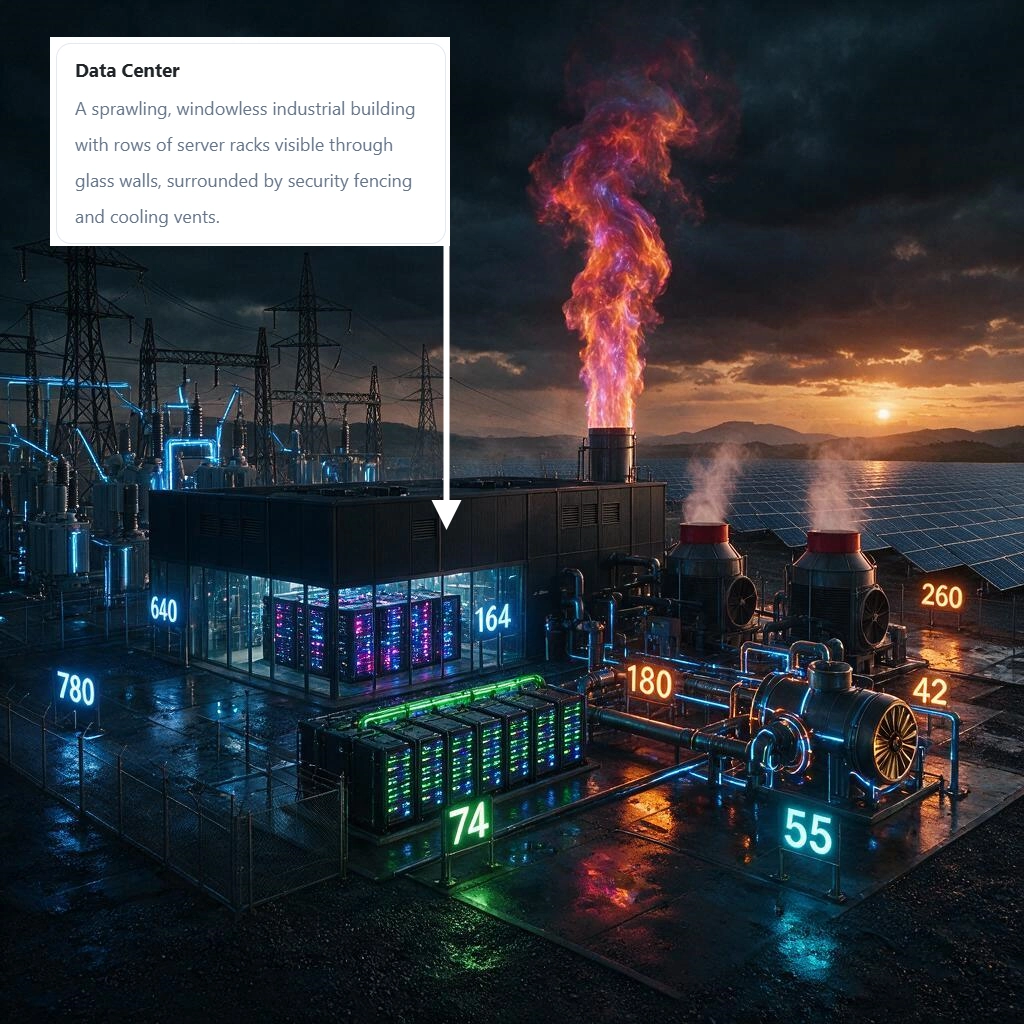
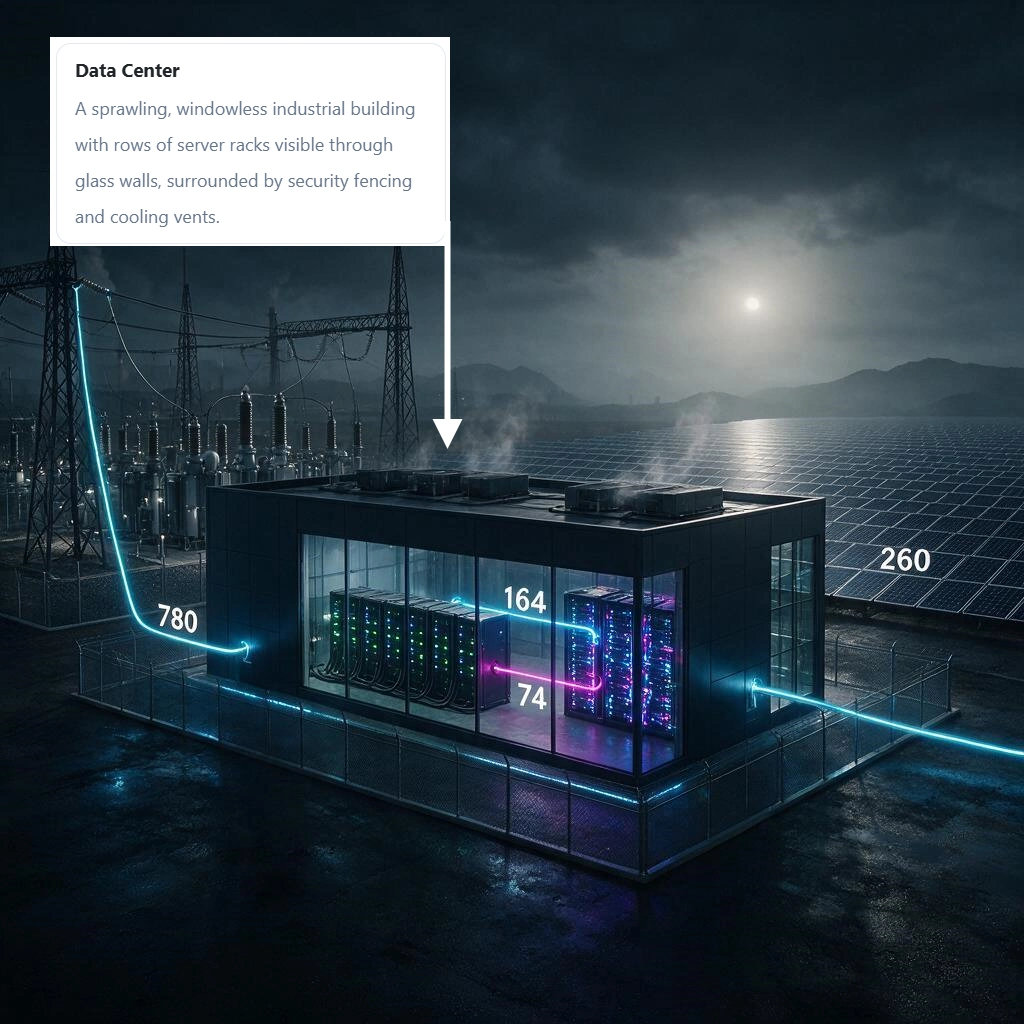
Turn Your Diagram Into a Consistent Slide Deck

One click writes a full set of AI-image-generation prompts from your data - ready to paste into whatever image generator you already use, with every recurring entity locked to the same look, slide after slide.

Click any image to enlarge
explore

Not Sure How To Shape
Your Data? Let AI Explore It.

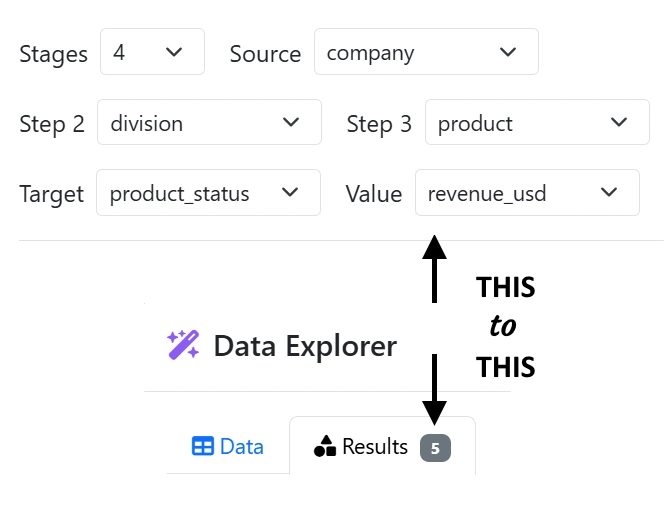
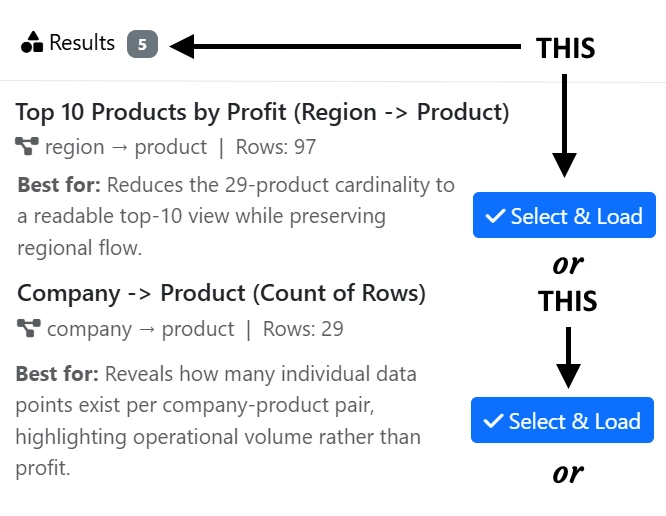
One click asks AI to propose a few genuinely different ways to turn whatever you've loaded into Sankey diagrams. It computes each one exactly against your full dataset, not a guess.

Click any image to enlarge
a closer look

Little Details That Add Up

A few of the things that make building and reading a diagram easier - not just prettier.

Context, built in

See How a Diagram Was Built

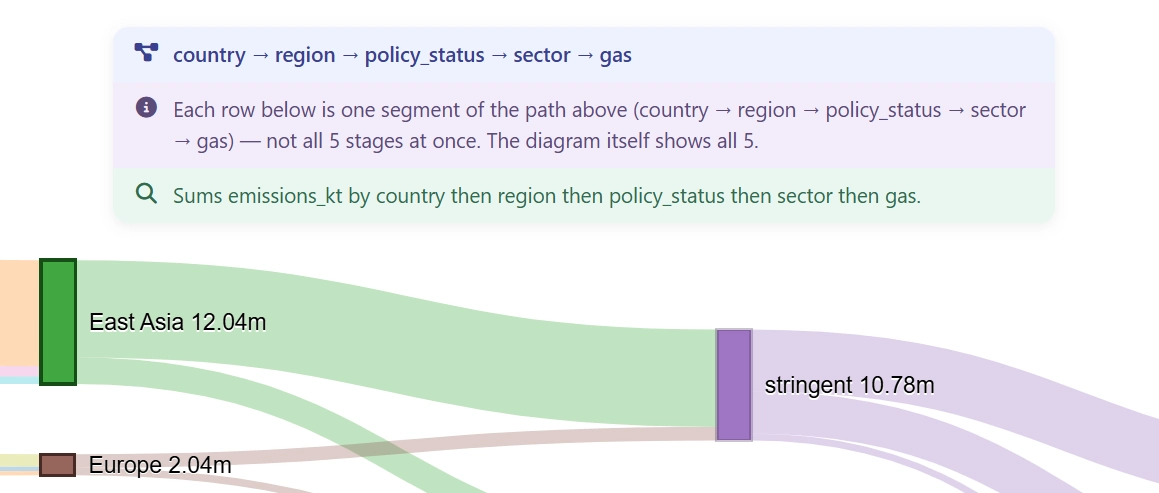
Build a diagram from a Data Explorer suggestion, and a small card appears right above it - the exact flow path, what's being counted or summed, and a plain-language description of the query.

Anyone looking at the diagram later - including you, a few months from now - doesn't have to guess how it was put together. One setting turns it off if you'd rather share a clean diagram without the extra context.

Explore Info Card
An Explore Info card in SankeyBUILDER showing the flow path and query used to build the diagram below it

Click any image to enlarge
Narrow it down first

Filter and Sort Before You Explore

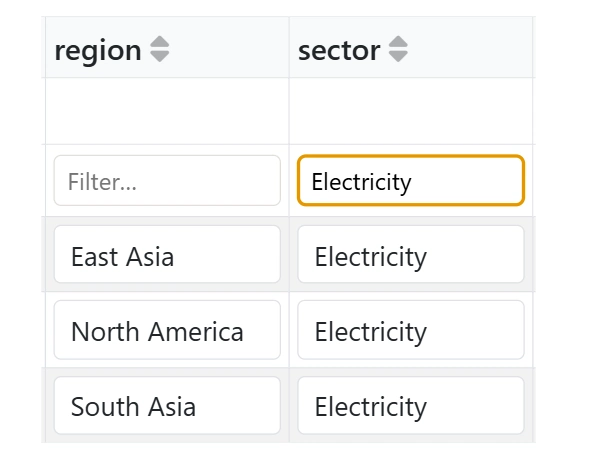
Every column in the Data Explorer tab gets its own filter and sort - narrow down to just the rows you care about before asking AI to find patterns in them.

Whatever's currently filtered is exactly what gets analyzed, not silently your whole dataset regardless of what's on screen.

Explore - Data Tab
Per-column filter and sort controls in the AI Data Explorer's Data tab
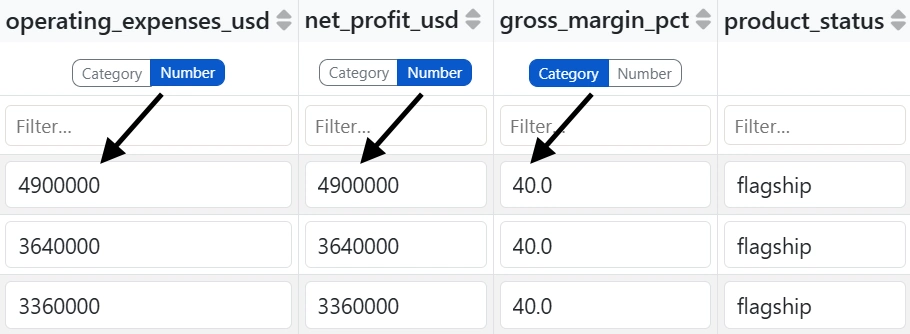
Numbers aren't always numbers

Tell It What's Actually a Measure

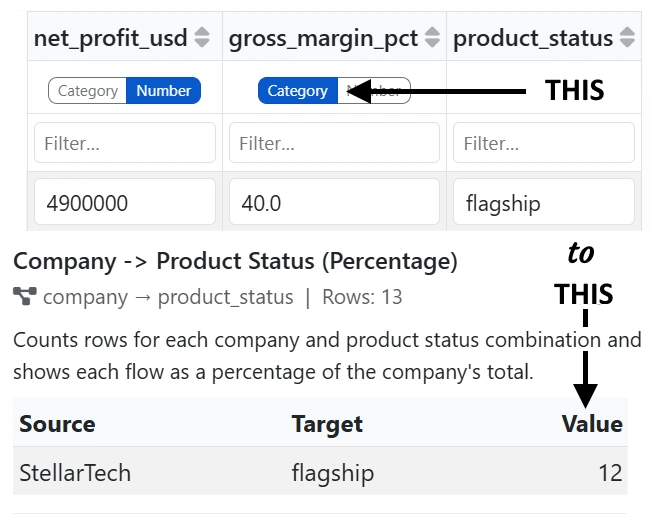
Numeric-looking doesn't always mean summable! Tag any such column Category (never summed, treated like a label) or Number (a real measure, fair game to add up) - and get a total worth trusting. An Agent ID stored as 4521? Category. A "Gross Margin %" column? Category too - averaging beats adding, and summed-up percentages never mean anything useful.

Explore - Data Tab
Category and Number toggle buttons under a numeric-looking column in the AI Data Explorer's Data tab
Layout that sticks

Node Lock

Drag any node exactly where you want it, then hit Save to lock that layout in.

No more re-arranging your diagram every time the data refreshes - your custom positions survive new rows, live updates, and even paging through a large dataset.

Node Tab - Node Lock
Node Lock controls in SankeyBUILDER, showing Save and Restore buttons for a custom node layout
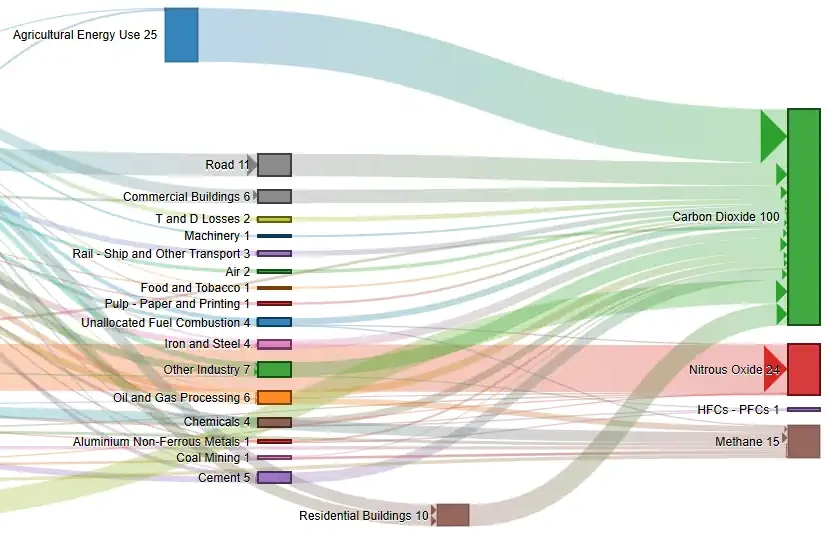
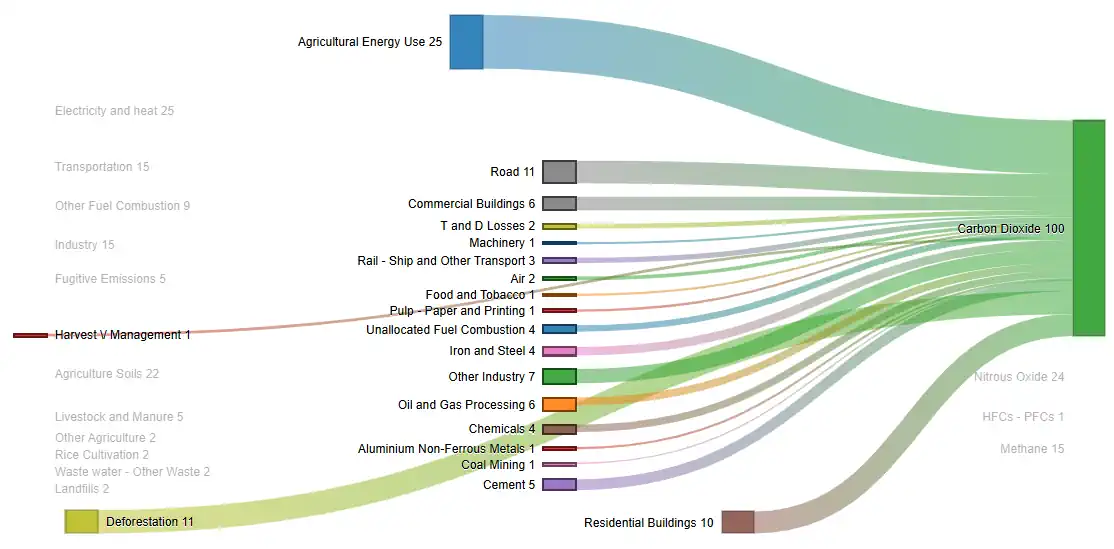
Trace a path

Highlight Flows by Selecting a Node

Click any node and every flow connected to it lights up while the rest fades into the background - so you can trace exactly where a category's volume comes from, or where it goes, without losing it in a busy diagram.

Diagram - Selected Node
A selected node in SankeyBUILDER with its connected flows highlighted and the rest of the diagram dimmed
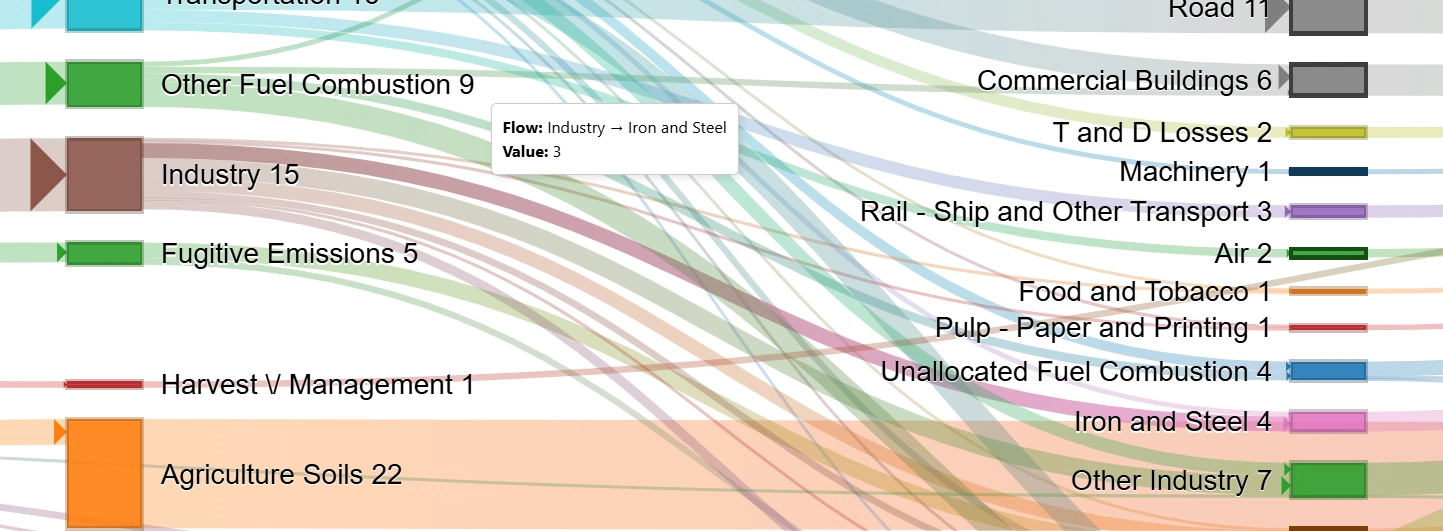
Zero in

Scroll to Zoom

Turn on Scroll Zoom and your mouse wheel zooms the diagram instead of the page - perfect for zeroing in on a dense cluster of flows or a single node you want to inspect closely, then zooming back out for the full picture.

Layout Tab - Scroll Zoom
Scroll Zoom enabled in SankeyBUILDER, zoomed in on a cluster of flows
For developers

Test the API

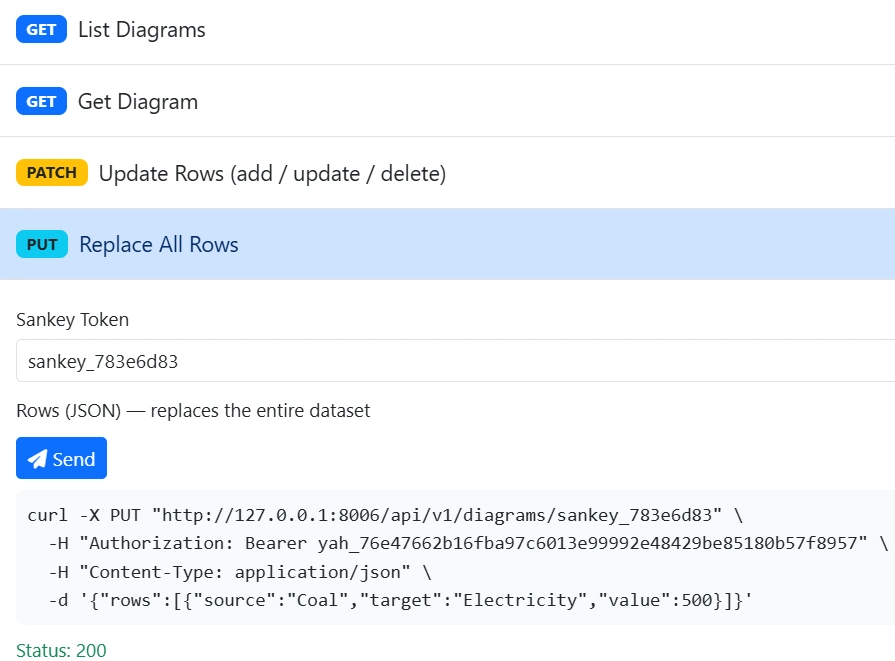
Every API-powered diagram runs on a simple REST API. Explore every endpoint and push sample data in minutes - or try it live in SankeyBUILDER, no setup required.

Postman - Push Data Endpoint
A SankeyBUILDER API request being tested in Postman
When flows loop back

Circular Flow Support

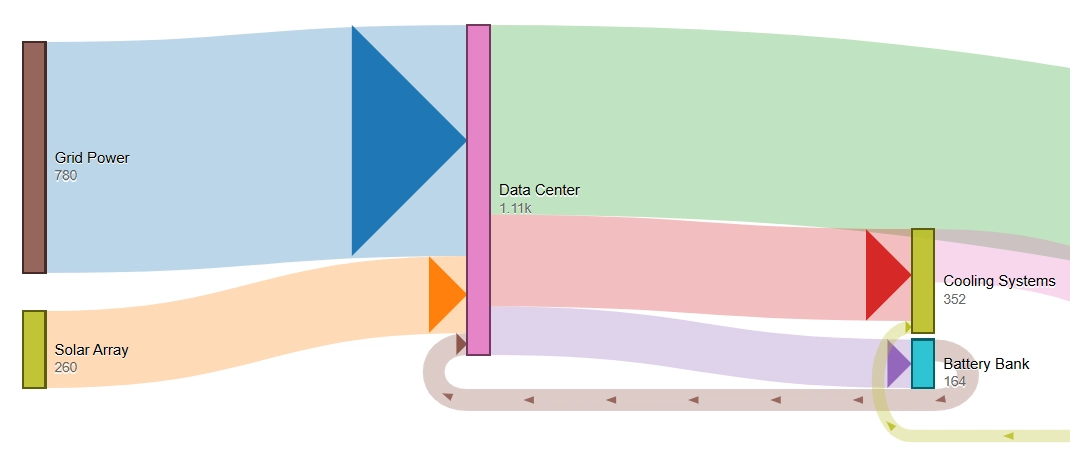
When your data includes a flow that loops back to an earlier stage, SankeyBUILDER detects it automatically and draws it as its own arc instead of a straight line that can't represent it. With more than one loop, Auto splits them cleanly between the top and bottom of the diagram so they never stack on top of each other - or force every loop to one side with a single Top or Bottom setting.

Diagram - Circular Flow
A circular flow in SankeyBUILDER, drawn as a loop-back arc beneath the main diagram
See the change happen

Highlight Arrow

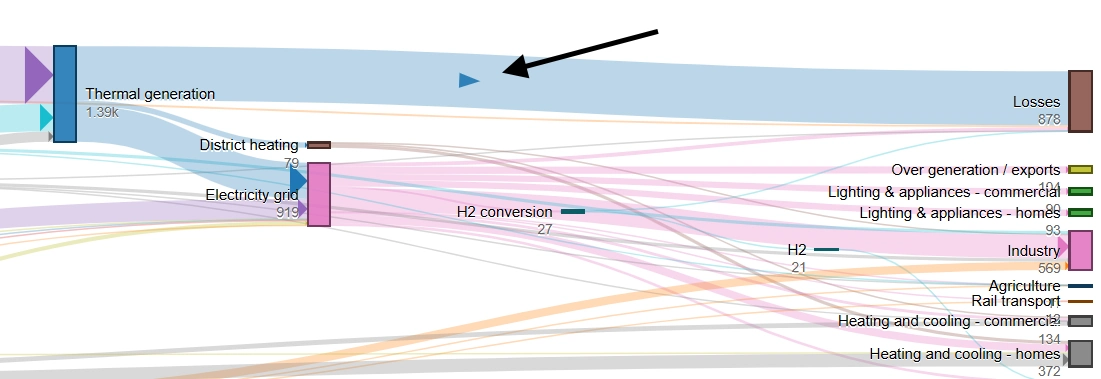
When live data changes - a new API push, a refreshed sheet - the diagram already briefly calls out whatever flow moved. Turn on Highlight Arrow and that moment gets even clearer: a small arrow travels along the changed flow from start to end, so an update is something you watch happen, not just a flash of color you might miss if you looked away for a second.

It's a simple Yes/No toggle - leave it off for the classic opacity highlight, or turn it on for the animated arrow. Either way, everyone watching the same live diagram sees exactly the same thing change at exactly the same moment.

Node Tab - Highlight Arrow
Highlight Arrow toggle in SankeyBUILDER, showing an animated arrow traveling along a changed flow

Click any image to enlarge
everything included

Everything you need to visualize flow

From a quick one-off diagram to a live, embedded dashboard fed by your own systems.

Full Visual Control

Colors, fonts, node width and spacing, label position, arrows, number formatting, orientation - style every detail of your diagram, no design skills required.

Node Lock

Drag nodes exactly where you want them and lock the layout in place - your custom arrangement survives new data, live updates, and even paging through large datasets.

Live Google Sheets Linking

Connect a published Google Sheet once, and your diagram updates automatically whenever the underlying data changes - no re-uploading, ever.

API-Powered Diagrams

Push data directly from your own systems with a simple REST API. Perfect for dashboards that need to reflect live, real-world numbers.

Multi-Stage Flows

Go beyond a single Source → Target hop - build up to 5 stages (Source → Step 2 → Step 3 → Step 4 → Target) to see how a value moves through several categories in sequence, not just two.

Flow Intelligence

One click reads your flow data and surfaces the story in it - biggest drivers, bottlenecks, what to prioritize - in plain language, plus a shareable PDF report. See how it works ↓

Embed Anywhere

Drop a live, auto-updating diagram straight into your own website with a single iframe - no extra hosting, no static exports to keep in sync.

Fit Any Screen

A one-click auto-size toggle scales your diagram to fit any device width, from a phone in someone's pocket to a wide monitor.

Paging for Big Datasets

Hundreds or thousands of rows? Page through them in manageable chunks, or hit play and watch your diagram walk through the data on its own.

Share in One Click

Generate a public link instantly - no account needed for the people you share it with.

Visible or Hidden Data

Choose whether viewers can see and explore the underlying data table, or just the finished, polished diagram.

Live Auto-Refresh

Linked and API-powered diagrams stay in sync on their own - build it once, and let the data keep it current.

why SankeyBUILDER

Built for people who visualize flow for a living

Budgets, energy transfers, website traffic, org structures, supply chains - if it flows from one thing to another, it belongs here.

No design skills needed

Drag, drop, done

Always up to date

Linked & API data auto-refresh

No lock-in

Export PNG/SVG any time

Free to try

1 of every diagram type

introductory pricing

Build Your Plan

Get started with a free trial. When you're ready, simply choose the number of months you need to host your diagrams and take advantage of all your selected features.

Regular
Free
Linked
Free
API
Free
Flow Intel
Free
Data Explorer
Free
Storage
$0
Subtotal $0
Price $0

Loading current pricing…

All prices in USD. Credits (1 credit = 1 diagram) are a one-time purchase. Storage (Regular/Linked/API) is billed for the whole term you pick, discounted for longer terms - no auto-renewal.

FAQ

Questions? We've got answers.

A Sankey diagram shows how a quantity - money, energy, website visitors, whatever you're tracking - flows from one category to another. The width of each connecting band represents the size of that flow, so it's immediately obvious where the biggest movements are happening. Common uses include budgets, energy transfers, conversion funnels, and org or process breakdowns.
A real, working account for 30 days - credits for Regular, Linked, API, Flow Intelligence, and Data Explorer, no credit card required. Build a real diagram, connect a Sheet, push data through the API, run a report, try Explore - genuinely use the tool, not just read about it. Click Start Free anywhere on this page - just an email address for your magic link - and you're in. When you're ready for more, Upgrade lets you pay for whichever features you actually use; anything you don't include in that purchase gets disabled once your Free term ends, so it's worth picking based on what you actually plan to keep using.
Yes - Storage, the fee that keeps Regular, Linked, and API active, is billed as a monthly rate multiplied by however many months you choose, with a bigger discount the longer you commit - up to 25% off at 12 months, 30% off at 24+. You can pick any term length, not just fixed options, and extend it again any time by coming back to the Storage row - it stacks on top of whatever time you have left rather than resetting. Credits (Regular, Linked, API, Flow Intel, Data Explorer) are priced separately as a one-time purchase and aren't affected by term length or the discount.
Credits and Storage are priced separately. Credits (Regular, Linked, API, Flow Intel, Data Explorer) are a one-time purchase - 1 credit = 1 diagram - and don't change price no matter how long a term you buy. Storage is what keeps Regular, Linked, and API active, billed monthly for however many months you choose; credits for those features only work while Storage is still active, and stop being usable if it lapses, even if you still have some left. Need more time? Just come back to the Storage row in your pricing any time and pick more months - it stacks on top of whatever's remaining, not reset from today: pick 3 months, then add 4 more a month later, and you end up with 7 months of access from your original purchase. There's no auto-renewal - when Storage runs out, that's it until you add more.
A Linked diagram reads directly from a published Google Sheet - update the sheet, and the diagram picks up the change automatically. An API Powered diagram is fed by your own code or systems pushing rows to it directly, which is a better fit if your data doesn't live in a spreadsheet at all - an internal dashboard, a data pipeline, or any app you control.
Yes - Regular, Linked or API Powered diagrams include an embeddable URL you can drop straight into an iframe. Linked or API Powered diagrams update on there own as the underlying data changes. All three diagram types automatically resize if loaded on a mobile device with optional zoom in/out capabilities.
Drag any node to exactly where you want it, then hit Save to lock that layout in - your custom arrangement sticks around through live data updates, new rows, and even paging through a large dataset, instead of the diagram recalculating a fresh layout every time something changes. Hit Restore any time to snap back to the automatic layout.
Once a dataset crosses 100 rows, paging turns on automatically and breaks it into manageable pages you can step through - or hit Play and watch the diagram walk through the data on its own, on whatever schedule you set. Works alongside Node Lock, so a layout you've customized on one page stays put when paging moves away and back.
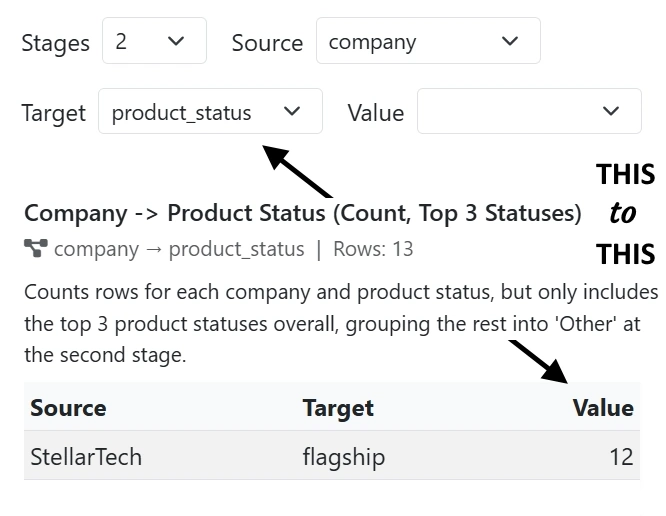
In Explore, a "Stages" selector next to Source lets you pick 2 to 5 total stages - choosing more than 2 inserts Step columns between Source and Target, so instead of just Region → Sector you can build Region → Sector → Gas → Policy Status, four hops in one diagram. AI proposes suggestions using your exact path (and a few shorter sub-paths for comparison), then computes each one for real against your full dataset. Helpful anywhere a value passes through more than one category on its way somewhere - a customer moving through region → product line → outcome, an emissions source moving through sector → gas → policy status, that kind of multi-step story a simple two-column flow can't tell on its own.
One click reads your diagram's flow data and hands back specific, plain-language findings - your single biggest driver, a bottleneck where volume piles up and doesn't move on, an unexpectedly large or small flow worth double-checking, and more. Each finding is flagged Critical, Watch, or Minor and paired with a hypothesis - a concrete, quantified "if you changed this, here's the effect" - so you're never just staring at a bigger or smaller number wondering what it means. It's aware of what your columns actually represent, so the analysis is written in terms of your real data, not generic "node" and "flow" language. If your data changed you get a fresh analysis - otherwise you get the same answer back instantly. You can also generate a shareable PDF report to hand to anyone, even if they've never opened the app.
The biggest number in your data isn't always the smartest place to start - especially if the finding behind it is shaky. The Priority Matrix ranks findings by weighing their impact against how confident the analysis actually is in that finding, so a large-but-uncertain issue doesn't automatically outrank a smaller one you can act on with real confidence. Everything is ranked relative to your own diagram - a "High" priority in a small dataset and a "High" priority in a huge one both mean the same thing: start here.
Explore asks AI to look at your data and propose a few genuinely different ways to turn it into a Sankey - different column pairings, a top-N grouping for a column with lots of distinct values, sum vs. count vs. percentage - then computes each one for real against your full dataset, not an estimate. It works even if your data has no numeric value column at all, falling back to simply counting rows per category. And for any column that looks numeric but is really an identifier - an Agent number, say - you can tag it Category instead of Number, so it never gets summed into a meaningless total.
Explore's Data tab lets you filter under each column, narrowing down to just the rows you want the AI to consider. Whatever's currently filtered is exactly what gets sent - not silently your whole dataset regardless of what's on screen. Because that's a real change to the underlying data, filtering and running Explore again triggers a fresh generation (and spends a Data Explorer credit) rather than reusing a previous result - same as picking different columns or retagging a Category/Number column would.
Only when your diagram's underlying flow data has actually changed since the last report was built for it. Reopening or rebuilding a Flow Intelligence report on unchanged data is free - it's tied to whether the data itself is different, not how many times you click the button.
Yes - if your data includes a flow that loops back to an earlier stage (a returned product, a repeat customer, a reprocessed material), SankeyBUILDER detects the cycle automatically and draws it as its own loop-back arc beneath the main diagram, rather than trying to force it into a straight left-to-right layout that can't represent a cycle. You can style loop-backs as dashed or solid, and Flow Intelligence factors them into its findings, since a real feedback loop is often worth flagging on its own.
By default, on Auto: if your data has more than one loop, SankeyBUILDER splits them cleanly between the top and bottom of the diagram so they never stack on top of each other or get tangled together. If you'd rather every loop sit on the Top or Bottom make that selection - useful if you know exactly where you want the extra visual space to go, or you're matching a layout you've already settled on.
Yes - the first time a node gets a color, it's locked in and saved as part of the diagram, not recalculated on the fly. That means the same node is always the same color, whether you're looking at it in the builder, in an embed, in the API simulator, or in a Flow Intelligence report - everyone looking at the diagram sees the same thing, and colors won't reshuffle after a data refresh or a page reload.
It's a Yes/No toggle for how a changed flow gets called out when your data updates live. With it off, a changed flow briefly brightens - a bump in opacity - so it's easy to spot. Turn it on and a small arrow animates along the flow's path instead, traveling from start to end, which is an even more obvious way to show a change actually happening - especially handy if more than one person is watching the same live-updating diagram at once.
Yes - SankeyBUILDER is also available as a free, open-source edition on GitHub, with no account, no server, and nothing ever uploaded anywhere. It covers the core diagram builder: CSV/TSV upload with an editable data table, five sample datasets (including a Circular one to try automatic loop-back arcs), full styling control over labels, colors, curvature, and node layout, and offline .skd save/load. Features that depend on a live backend - Linked Google Sheets, the API, and Flow Intelligence's AI-generated reports - are exclusive to the hosted version at SankeyBUILDER.org, but the open-source edition is a complete, self-contained tool on its own. Grab it at github.com/eformx/sankeybuilder.
get in touch

Questions, feedback, or need a hand?

Send us a message and we'll get back to you as soon as we can.

2 × 3 = ?

We'll reply as soon as possible.

Access SankeyBUILDER

Enter your email to receive a magic link

No credit card required